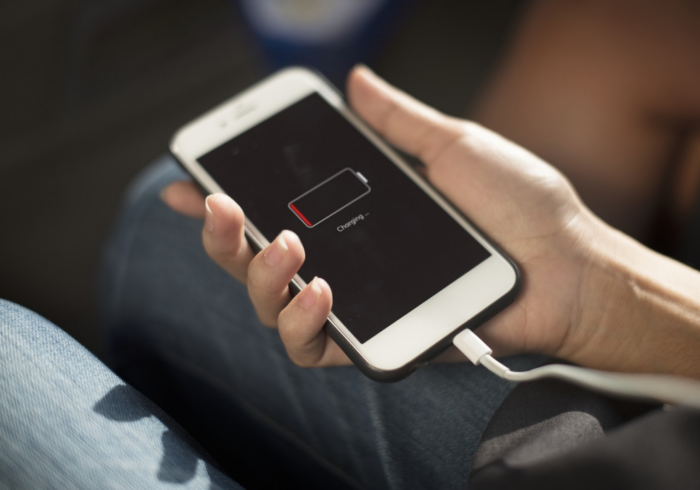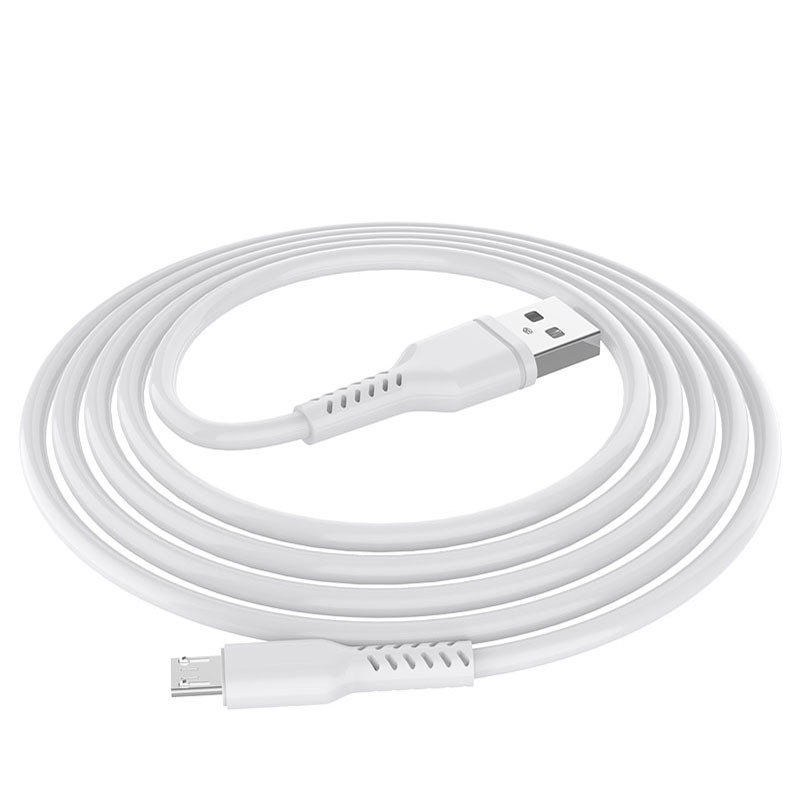
In the modern digital landscape, the smartphone is the central hub of our daily lives, housing everything from precious personal photographs to essential business documents. We are constantly plugging our devices into power sources, be it at our desks, in our cars, or using portable power banks. Amidst this constant cycle of charging, a common technical question often arises regarding the versatility of the accessories we use daily: can an iPhone charging cable transfer files effectively between devices?
While we often think of these white cords simply as a lifeline for a dying battery, their internal architecture is frequently more sophisticated than a basic power delivery system. Understanding whether a specific cable is capable of handling data transmission is essential for anyone who wants to manage their digital content efficiently without relying solely on cloud services or wireless transfers.
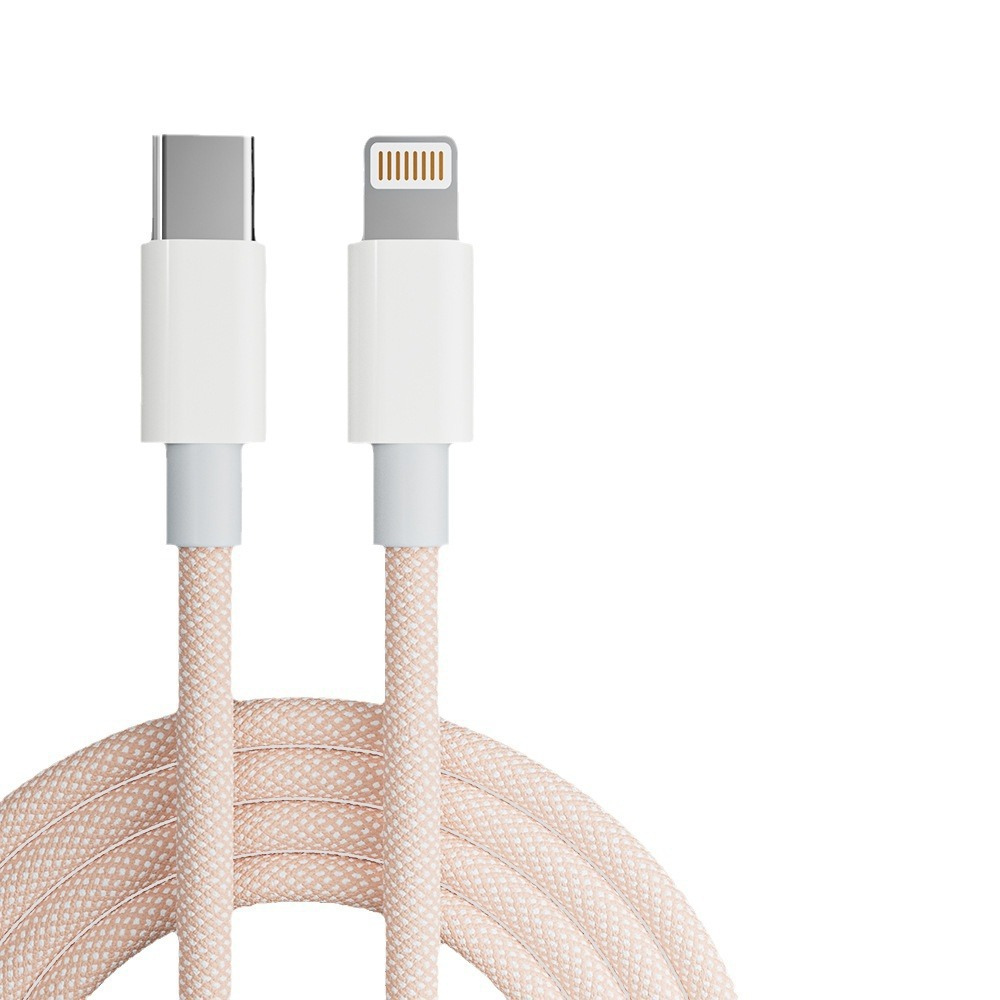
Table of Contents
The Anatomy of a Connection Cable
To understand how an iPhone cable functions, it is helpful to look inside the connector and the wire itself. A cable designed for both power and data is fundamentally different from one that is meant strictly for “charging only.”
Power Delivery Versus Data Pathways
At a basic level, a charging cable is a bridge for electricity. It connects the power pins of your iPhone to a wall adapter or a computer’s USB port, allowing current to flow into the battery. However, for a cable to function as a data transfer tool, it must possess specific internal wiring dedicated to communication. These data lines allow the iPhone to “talk” to a computer or another device, enabling the operating system to recognize the phone as an external storage drive or a multimedia device.
When you purchase a cable, especially third-party options, it is important to realize that not all of them are built with these data pathways. Some manufacturers intentionally omit the data wires to reduce costs or to create a “charge-only” product that is marketed as a safe, secure way to charge a device in public spaces where data theft is a potential risk. These “juice jacking” protection cables are increasingly popular in airports and coffee shops, but they are entirely useless if your primary goal is to move a large video file or a folder of documents to your laptop.
The Role of Certification and Quality
Apple’s own cables, as well as those carrying the “MFi” (Made for iPhone/iPad) certification, are almost universally designed to support both charging and high-speed data transfer. This certification signifies that the manufacturer has met Apple’s stringent standards for hardware communication. Using these high-quality cables not only ensures that your files move quickly but also guarantees that your hardware remains protected from voltage spikes and improper connections. When you use a non-certified, cheap cable, you are essentially gambling with the longevity of your iPhone’s charging port and the integrity of your data transfers.
Identifying Your Cable Capabilities
It is not always obvious by looking at the outside of a cable whether it supports data transfer. Because both charging-only cables and data-transfer cables often look identical, you need practical methods to verify their functionality before you attempt a major file migration.
Testing the Connection via Software
The most straightforward way to determine if your cable can transfer files is to plug your iPhone into a computer and observe the response. If your computer instantly recognizes the iPhone, prompts you to “Trust this Computer,” or launches a photo management or file-syncing application, your cable is successfully handling data.
If, however, your phone charges but the computer remains completely unaware that a device is connected, the cable is likely a “charge-only” variant. This behavior is common with very cheap, unbranded cables found in budget bins at convenience stores. It is also important to note that sometimes, even if a cable is capable of data transfer, it may be faulty or damaged. If you suspect your cable is data-capable but it isn’t working, testing it with a different computer or a different USB port on your machine can help isolate whether the issue lies with the cable or the software drivers.
Understanding Port Types and Standards
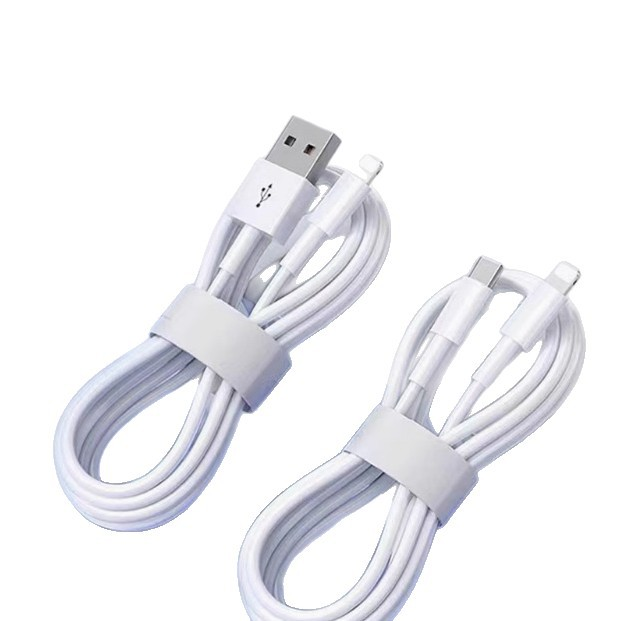
The evolution of the iPhone connector also plays a significant role in transfer speeds and capabilities. Older models utilize the proprietary Lightning connector, while modern iPhones have transitioned to the universal USB-C standard. While Lightning cables are generally consistent in their data support, USB-C cables vary wildly. Some USB-C cables are designed purely for charging laptops at high wattages and may have very limited data throughput, or no data capacity at all.
When dealing with USB-C, always check the technical specifications of the cable to ensure it supports the data protocols required for your specific file transfer needs. USB 2.0 speeds are common in budget cables, while USB 3.1 or Thunderbolt-capable cables are required for ultra-fast transfers of large raw photo files or 4K video clips. Misunderstanding these standards can lead to agonizingly slow transfer times even if your cable is technically “data-capable.”
The Physicality of Data Transfer
Beyond the software side, the physical construction of the cable plays a crucial role in how well it transfers data. The length and shielding of the cable are often overlooked factors that significantly impact the integrity of your files.
Cable Length and Signal Integrity
Long cables are convenient, but they are technically inferior for data transfer compared to shorter ones. As data travels down the wire, the signal can degrade, especially if the cable is not properly shielded. If you are trying to move massive files, such as a full iPhone backup, a 10-foot cable may lead to dropped connections and corrupted data packets. Professionals who need to sync heavy data frequently often opt for shorter, higher-quality cables to maintain a stable, high-speed connection between the iPhone and the computer.
The Importance of Shielding
Inside the cable, the wires that carry data are often twisted pairs, which are wrapped in metallic foil or braided shielding. This shielding is designed to protect the data signal from electromagnetic interference (EMI). Cheap cables often skip this internal shielding to save on materials. When you are transferring files near other electronics, this lack of shielding can lead to data errors. If your computer keeps reporting that the connection to the iPhone was lost during a transfer, it is highly likely that your cable lacks sufficient shielding and is being disrupted by external interference.
Optimizing File Transfer Success
Once you have verified that your cable supports data, the actual transfer process is usually quite seamless. However, to ensure reliability and speed, there are best practices that will save you time and frustration during your digital housekeeping.
Software and Trust Protocols
Your iPhone is designed with security in mind. When you connect it to a new computer, the “Trust” protocol is a necessary step to establish a secure link. Without confirming this prompt on your iPhone screen, the data pathways remain locked. Furthermore, ensuring that your computer has the latest drivers and file management software—such as Finder on a Mac or the latest version of the Apple Devices app on a Windows PC—is critical for the phone to appear as a drive or a mountable device. Sometimes, an outdated version of iTunes or the underlying system drivers can cause the computer to ignore the phone even when a perfectly functional data cable is being used.
Managing Large Data Transfers
If you are moving significant amounts of data, such as high-resolution video files or entire photo libraries, the quality of the cable becomes even more important. When moving massive datasets, the heat generated by the continuous operation of the iPhone’s flash storage and the computer’s processor can sometimes cause thermal throttling. To mitigate this, ensure that your device is not being exposed to high temperatures while transferring files. Additionally, if the transfer is taking a long time, keep the iPhone screen active if possible, as sometimes locking the screen can cause the connection to throttle or disconnect, depending on your power management settings.
Troubleshooting Frequent Disconnections
There is nothing more frustrating than a transfer progress bar that fails at 99%. If this happens, do not immediately assume your data is corrupted. Often, a physical connection issue is the culprit. Inspect the lightning or USB-C port on your iPhone for lint, dust, or debris. A small piece of pocket lint inside the port can prevent the data pins from making a solid connection. Use a non-conductive tool like a wooden toothpick to gently clear the port. Many “broken” cables turn out to be perfectly fine once the iPhone port is properly cleaned.
The Future of Wired Connectivity
The transition toward USB-C across the entire Apple ecosystem has simplified the hardware side of things, but it has not eliminated the need for consumer vigilance. As we continue to accumulate more digital media, the reliance on physical connections for backups and file management remains a constant. The shift to USB-C has been a massive boon for compatibility, as it allows users to use high-quality cables intended for other devices, such as cameras or high-performance external SSDs, to transfer files from their iPhones.
Using the correct cable is more than just a matter of convenience; it is a fundamental aspect of digital asset management. By ensuring you have a cable that is capable of more than just topping off your battery, you open up a world of control over your data. Whether you are creating a local backup, moving photos to an external drive, or syncing music, a reliable data-capable cable is an indispensable tool in your technical arsenal. Always prioritize certified products to ensure the longevity of both your data and your devices. In an era where cloud storage is popular, the physical, high-speed connection of a cable remains the most secure and private way to handle your most sensitive information.
Conclusion
In summary, while many iPhone charging cables are equipped to handle data transfer, it is not a universal feature. It is essential to use certified cables to ensure both the capability to move files and the safety of your device. By understanding the distinction between power-only and data-capable cables and by confirming your connections through standard software prompts, you can reliably and safely manage your iPhone’s files whenever the need arises. Staying informed about the quality of your accessories is the first step in ensuring your digital life stays organized, backed up, and secure from data loss or hardware damage.
How to purchase:Online B2B sourcing platform, China purchase, Chinese suppliers – LooperBuy
Related Questions & Answers
· How can I tell if my USB-C cable is for charging only?
If you plug your phone into a computer and it charges but the computer does not detect the device in your file explorer or system settings, the cable is almost certainly a charge-only cable.
· Does the length of the cable affect data transfer speed?
Yes, generally, shorter, high-quality cables provide more stable and faster data transfer rates than very long, inexpensive cables, which may suffer from signal degradation and interference over longer distances.
· What does MFi certification mean for my iPhone cable?
MFi stands for “Made for iPhone/iPad.” It is a licensing program from Apple that ensures the cable meets their performance and safety standards for both reliable charging and high-speed data transfer.
· Can I use a charging cable to transfer files between two iPhones?
Direct file transfer between two iPhones is typically handled via AirDrop or iCloud. A physical cable connection is intended for connecting an iPhone to a computer, an external hard drive, or other compatible host hardware devices.
· Are there risks to using cheap, non-certified cables?
Yes. Cheap, non-certified cables often lack proper surge protection, which can potentially damage your iPhone’s charging port or battery, and they frequently lack the necessary internal shielding to ensure reliable data transfer, leading to corrupted files.
Hot Tags:
Iphone; Charging; Cable; Data; Transfer; Files; Connectivity; Mfi; Certification; Usb-c; Lightning; Troubleshooting; Synchronization; Hardware; Performance; Digital; Media; Backup; Stability; Compatibility; Technology; Accessories; Smartphone; Peripheral; Mobile; Infrastructure; Maintenance; Optimization; Throughput; Bandwidth; Shielding; Interference; Security; Privacy; Port; Connection; Standards; Protocols; Drivers; File-system; Storage; External; Hard-drive; Utility; Efficiency; Longevity; Reliability; Quality-assurance; Voltage; Current; Watts; Speed; Reliability; Digital-hygiene; Data-migration; Cables-management; Tech-tips; Gadget; Electronics; Innovation; Usb-standard; Thunderbolt; Data-rate; Signal-integrity; Electromagnetic; Impedance; Connector-types; Charging-only; Juice-jacking; Encryption; Secure-connection; Trust-protocol; Computer-sync; Pc-integration; Mac-os; Windows; Finder; Itunes; Apple-devices; Portability; User-experience; Hardware-failure; Port-clogging; Lint-removal; Cable-testing; Power-delivery; Rapid-charging; Thermal-throttling; Data-loss-prevention; Firmware; Software-updates; Technical-specifications; Interface; Accessory-ecosystem; Device-interoperability; Data-security; Digital-life; Personal-computing; High-speed-data; Raw-files; 4k-video; Multimedia-transfer; Backup-solutions; Local-storage; Cloud-alternatives; Physical-security; Cable-selection; Buying-guide; Accessory-validation; Apple-ecosystem; Consumer-electronics; Tech-education; Wired-connection; Data-integrity; Signal-degradation; Transfer-errors; Port-protection; Charging-safety; Voltage-regulation; Power-management; Device-recognition; Operating-system-compatibility; Driver-installation; File-management; Folder-sync; Media-library; Professional-use; Desktop-integration; Laptop-connectivity; Mobile-workstation; Digital-media-management; Connectivity-standards; Universal-serial-bus; Type-c; Connector-design; Wire-gauge; Copper-quality; Shielding-effectiveness; Data-packets; Connection-stability; Transfer-interruption; Tech-maintenance; Daily-usage; Digital-assets; Secure-transfer; Privacy-control; User-privacy; Hardware-protection; Device-health; Charging-port; Data-pins; Power-pins; Cable-length; Signal-interference; Noise-reduction; Error-correction; Throughput-optimization; Performance-tuning; System-optimization; Apple-certification; Third-party-cables; Budget-cables; Premium-accessories; Charging-solutions