Table of Contents
Introduction
The Redmi series phones, known for their impressive features and affordability, have gained a large user base. However, some users may encounter issues with their Redmi phone’s touch screen not working properly. This article will explore the common causes of this problem and provide effective solutions to help you get your touch screen working again.
Common Causes of Redmi Phone Touch Screen Not Working

Software – Related Causes
- System or Application Software Errors: Temporary software glitches, such as bugs or conflicts in the operating system or installed applications, may cause the touch screen to malfunction. For example, some newly installed apps may not be compatible with the system, leading to abnormal touch screen responses.
- Incompatible System Updates: After a system update, some users may find that their touch screen becomes unresponsive. This is because the updated system may have compatibility issues with certain hardware components or existing software.
Hardware – Related Causes
- Physical Damage: Drops, impacts, or pressure on the phone can cause internal damage to the touch screen, such as broken touch screen flexible cables or damaged IC components. This may result in the touch screen not working at all or responding poorly in certain areas.
- Water or Liquid Damage: Exposure to water, sweat, or other liquids can corrode the touch screen’s flexible cable socket, causing the touch screen to fail. In severe cases, it may also damage other internal components of the phone.
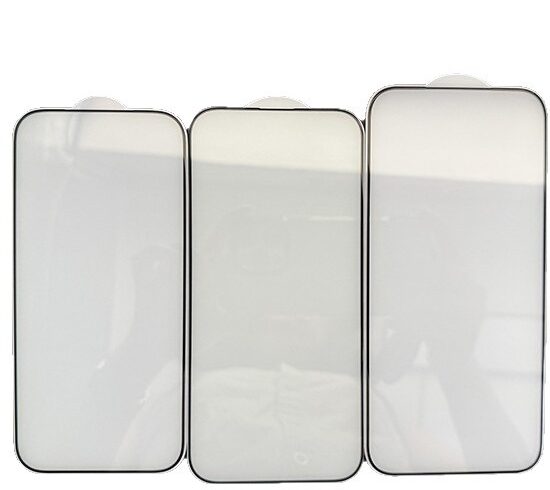
- Screen Protector or Case Interference: Low – quality or poorly – aligned screen protectors and phone cases may affect the touch screen’s accuracy and sensitivity. For instance, some screen protectors may have uneven surfaces or bubbles, which can interfere with touch input.
Solutions to Redmi Phone Touch Screen Not Working
Software Solutions
- Restart the Device: A simple restart can clear temporary software glitches and restore normal touch screen function. If a restart doesn’t work, try a forced restart. The method for a forced restart may vary depending on the Redmi phone model. Generally, you can press and hold the “Power” and “Volume Up” buttons until the screen turns off and the Mi logo appears .
- Remove SD and SIM Cards: Corrupted or damaged SD cards may cause touch screen issues. Turn off the phone, remove the SIM tray using the ejector pin, take out the SD and SIM cards, reinsert them, and turn on the device to see if the problem is resolved .
- Calibrate the Touch Screen: Constant use of the phone may cause the touch screen to become inaccurate. You can try calibrating the touch screen. Some Redmi phones have a touch screen calibration option in the “Settings.” If not, you can download specialized Android touch screen calibration apps from the Google Play Store, such as “Touchscreen Calibration” or “Calibrate Touch Screen Repair” .
- Boot into Safe Mode: If you suspect that a third – party app is causing the touch screen issue, boot your phone into Safe Mode. In Safe Mode, only essential system apps will run, allowing you to identify and uninstall problematic apps. To enter Safe Mode, press and hold the “Power” button until the Power menu appears. Select the “Power Off” option, then use the “Power” and “Volume Up” buttons to turn on the device. Select the “Safe Mode” option from the “Main Menu” .
- Update or Roll Back the System: If a system update has caused the touch screen to malfunction, check if the manufacturer has released a new update to fix the issue. If so, update your phone promptly. Alternatively, consider rolling back to the previous stable system version. However, system downgrades may void your warranty and carry certain risks, so proceed with caution and follow the manufacturer’s instructions.
- Factory Reset: If the above methods fail to resolve the issue, a factory reset may be necessary. Before doing so, back up your important data. A factory reset will erase all user – installed apps and settings, restoring the phone to its default state and potentially fixing the touch screen problem .
Hardware Solutions
- Inspect for Physical Damage: Carefully examine the touch screen for visible cracks, scratches, or other damage. If physical damage is found, it is advisable to visit an authorized after – sales service center for repair or replacement of the touch screen.
- Clean the Touch Screen Socket: If the phone has been exposed to water or liquids, the touch screen flexible cable socket may become corroded or rusty. In such cases, you will need to disassemble the phone and clean the socket with a brush and a small amount of alcohol to restore its normal function. However, disassembling the phone carries risks and is recommended only for professionals or experienced individuals .
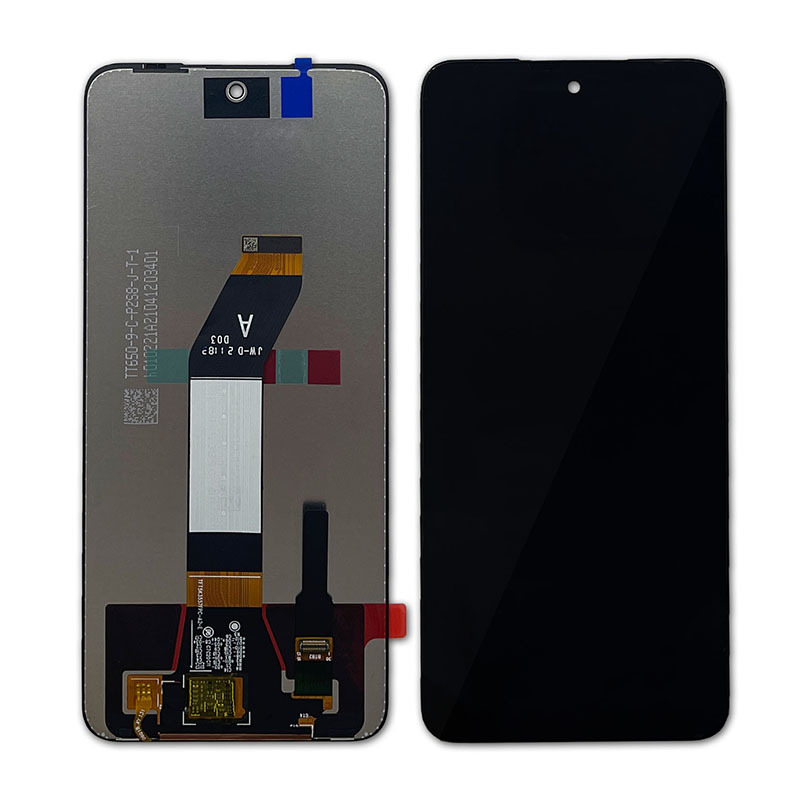
- Replace the Touch Screen: If the touch screen remains unresponsive after attempting software solutions and minor hardware fixes, the issue may be with the touch screen itself. In this case, the best solution is to replace the touch screen. You can visit an authorized service center or a reputable repair shop for the replacement. During the replacement, ensure that the new touch screen is compatible with your phone model and check for any physical defects in the new part to avoid unresolved issues .

Other Solutions
- Check for Magnetic Interference: Magnetic accessories or devices near the phone may affect the touch screen’s functionality. Check if any magnetic objects are interfering with the phone and keep them away from it .
- Use the Original Charger: Non – original or low – quality chargers may provide unstable power, causing the touch screen to malfunction. It is recommended to use the original charger that came with the phone to ensure stable power supply and normal touch screen operation .
How to Prevent Redmi Phone Touch Screen Issues
- Avoid Physical Impact: Handle your phone with care to prevent drops or impacts. Avoid placing heavy objects on top of the phone to reduce the risk of physical damage to the touch screen.
- Keep the Phone Dry: Prevent the phone from coming into contact with water, sweat, or other liquids. If the phone gets wet, immediately power it off, remove the SIM card and other components, and place it in a container with dry rice or silica gel to absorb moisture. Seek professional repair if necessary .
- Use Quality Accessories: Choose high – quality screen protectors and phone cases to minimize their impact on the touch screen. Ensure that the screen protector is properly aligned and free of bubbles.
- Regularly Maintain the Phone: Clear cached data regularly to free up system resources and maintain stable phone performance. You can go to “Settings” > “Storage” > “Cached Data” and select “Clear Cache” to remove temporary files and improve the phone’s operating efficiency.
Conclusion
Redmi phone touch screen issues can stem from various software and hardware causes. By understanding the common causes and trying the solutions provided in this article, you can address most touch screen problems. If the issue persists, it is advisable to visit an authorized after – sales service center for professional assistance. Additionally, taking preventive measures in daily use can help extend the lifespan of your Redmi phone’s touch screen and ensure a better user experience.
How to Purchase:https://looperbuy.com/search?keywords=redmi+phone+touch+screen
Frequently Asked Questions
Q: What should I do if my Redmi phone’s touch screen suddenly stops working?
A: First, try restarting your phone. If that doesn’t work, perform a forced restart. You can also check if there are any physical damages or interferences, such as water exposure or a damaged screen protector. Remove the screen protector and case, clean the touch screen surface, and see if the issue resolves. If the problem persists, consider using system repair tools or visiting an authorized service center.
Q: Can a factory reset fix a Redmi phone’s unresponsive touch screen?
A: A factory reset may help resolve touch screen issues caused by software glitches or corrupted settings. However, it will erase all user – installed apps and personal data. Be sure to back up your important data before performing a factory reset.
Q: How can I determine if my Redmi phone’s touch screen requires replacement?
A: If your touch screen remains unresponsive after attempting software solutions and minor hardware fixes, or if there are visible cracks or damage, it is likely that the touch screen needs to be replaced. You can visit an authorized service center for inspection and repair.
Q: How do I calibrate the touch screen on my Redmi phone?
A: Some Redmi phones have a touch screen calibration option in the “Settings.” If not, you can download specialized Android touch screen calibration apps from the Google Play Store, such as “Touchscreen Calibration” or “Calibrate Touch Screen Repair.” Follow the app’s instructions to complete the calibration process.
Q: Can using a non – original charger cause touch screen issues on my Redmi phone?
A: Yes, using non – original or low – quality chargers may provide unstable power, leading to touch screen malfunctions. It is recommended to use the original charger that came with your phone to ensure stable power supply and normal touch screen operation.
Hot Tags: Redmi Phone Touch Screen Not Working; Redmi Phone Touch Screen Issue Troubleshooting; Redmi Phone Touch Screen Repair Guide; Redmi Touch Screen Calibration; Redmi Touch Screen Replacement; Redmi Phone Touch Screen Unresponsive; Redmi Phone Touch Screen Fix; Redmi Touch Screen Not Responding; Redmi Phone Touch Screen Solution; Redmi Touch Screen Problem