
Table of Contents
Introduction: When Your Samsung Phone Goes Dark
A black screen on your Samsung phone can be a frustrating experience, especially when you need to access important information or make an urgent call. While it may seem like a serious issue, there are several potential causes, ranging from minor software glitches to hardware problems. This comprehensive guide explores the reasons behind a black screen on Samsung phones, provides step-by-step troubleshooting solutions, and offers preventive measures to avoid recurrence.
Understanding the Black Screen Issue
Common Symptoms of a Black Screen Problem
A completely black screen with no response to touch or buttons is the most obvious sign. However, sometimes the screen may flicker, show a faint image, or remain unresponsive after a restart. These variations can help diagnose the root cause.
When to Worry About a Black Screen
If the black screen persists after basic troubleshooting, or if it’s accompanied by other issues like overheating, battery drainage, or physical damage, it may indicate a more serious problem requiring professional repair.
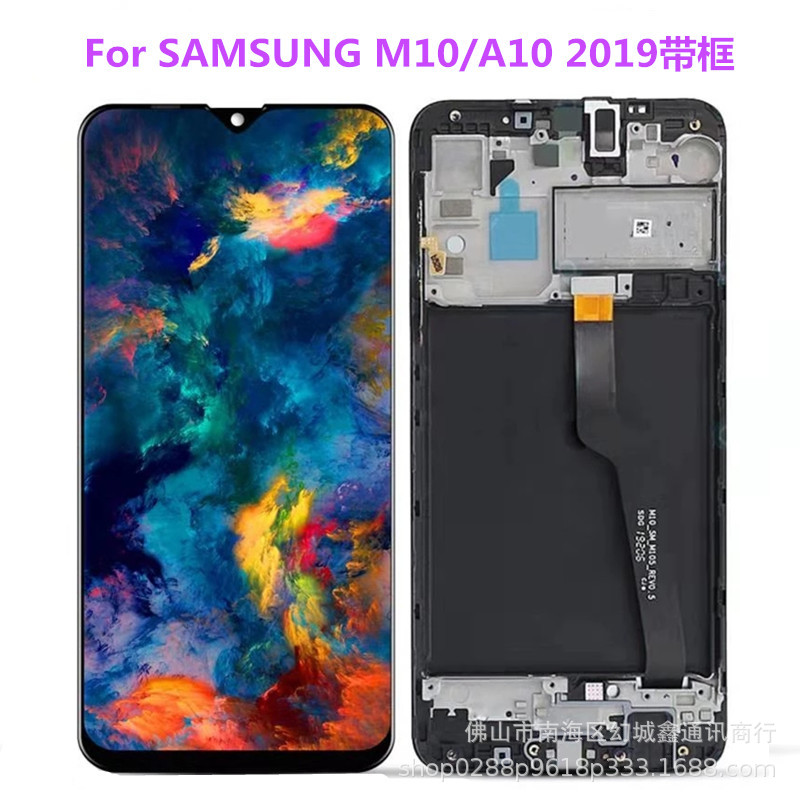
Potential Causes of a Black Screen on Samsung Phones
Software Glitches and System Crashes
A frozen or crashed operating system can cause the screen to go black while the phone remains on. This is often triggered by app conflicts, failed updates, or corrupted system files.
Battery and Power Issues
A drained battery, faulty charging port, or malfunctioning power button can prevent the screen from turning on, even if the phone is technically powered on.
Physical Damage and Hardware Failures
Drops, water exposure, or internal component damage can lead to a black screen. If the display cable is disconnected or the screen itself is cracked, the phone may appear unresponsive.
Overheating and Thermal Protection
Excessive heat can trigger Samsung’s thermal protection system, forcing the phone to shut down or display a black screen to prevent further damage.

Step-by-Step Troubleshooting Solutions
Basic Checks Before Advanced Fixes
Before diving into complex solutions, start with simple checks like charging the phone, force restarting it, or connecting it to a computer to see if it’s recognized.
Force Restarting Your Samsung Phone
A forced restart can resolve temporary software glitches. The method varies by model:
- For most Samsung phones, press and hold the Power and Volume Down buttons simultaneously for 10-15 seconds.
- For models with a physical Home button, press and hold the Power, Home, and Volume Down buttons.
Charging and Battery-Related Fixes
If the phone doesn’t respond to a force restart, connect it to a charger and wait for a few minutes. Look for a charging indicator light or battery icon. If none appears, try a different charger, cable, or power source.
Using Samsung’s Smart Switch or Find My Mobile
If the phone is completely unresponsive, Samsung’s Smart Switch software or Find My Mobile service (if enabled) can help diagnose or even control the device remotely.
Boot into Safe Mode to Identify App Conflicts
Safe Mode disables third-party apps, allowing you to determine if a recently installed app is causing the issue. To enter Safe Mode, press and hold the Power button, then long-press the Power Off option until “Safe Mode” appears.
Performing a Factory Reset (Last Resort)
If all else fails, a factory reset can restore the phone to its original state. Be aware that this will erase all data, so it’s crucial to back up important files beforehand if possible.
Advanced Solutions for Persistent Black Screen Issues
Using Odin Mode for Flashing Firmware
For advanced users, Odin Mode allows you to flash firmware onto your Samsung phone, potentially fixing software corruption. This requires a computer, Odin software, and the correct firmware file for your model.
Checking for Hardware Damage
If the screen remains black even when the phone seems to be on (e.g., you hear notifications or feel vibrations), there may be a hardware issue. Look for physical damage, test the screen with an external monitor (if possible), or visit a repair center.
Seeking Professional Repair Services
If DIY solutions don’t work, it’s time to consult a professional. Samsung’s official repair centers or authorized technicians can diagnose and fix hardware problems, such as a damaged display or motherboard.

Preventing Future Black Screen Problems
Regular Software Updates and Maintenance
Keep your phone’s operating system and apps updated to minimize the risk of crashes and compatibility issues. Regularly clear cache and uninstall unused apps to maintain performance.
Using Protective Cases and Avoiding Drops
Physical damage is a common cause of black screens. Invest in a durable case and screen protector, and handle your phone carefully to avoid drops and impacts.
Avoiding Overheating and Battery Abuse
Prevent overheating by avoiding direct sunlight, heavy multitasking, and prolonged gaming sessions. Use original chargers and avoid overcharging the battery.
Creating Regular Backups
Frequent backups ensure that your data is safe, even if you need to perform a factory reset or replace your phone due to a black screen issue.
Conclusion: Taking Action Against Black Screen Problems
A black screen on your Samsung phone can stem from various causes, but most issues are solvable with the right approach. Start with basic troubleshooting like force restarting and charging, then escalate to advanced solutions if necessary. Preventive measures like regular updates and protective accessories can help avoid recurrence. If all else fails, professional repair services are your best bet.
How to purchase: https://looperbuy.com/search?keywords=samsung+phone+screen&globalType=1688
Frequently Asked Questions (FAQs)
- What should I do if my Samsung phone screen is black but the phone is still on? If the phone is on but the screen is black, try connecting it to a charger to check for a charging indicator. If no light appears, force restart the phone by holding the Power and Volume Down buttons for 10-15 seconds. If it still doesn’t respond, connect it to a computer to see if it’s recognized by Samsung Smart Switch or Find My Mobile.
- How can I tell if my Samsung phone’s black screen is due to a software or hardware issue? If the phone responds to force restarts, charges normally, or makes sounds/vibrations, the issue is likely software-related. If the phone is completely unresponsive, the charging port is damaged, or the screen has visible cracks, it’s probably a hardware problem.
- Will a factory reset fix my Samsung phone’s black screen problem? A factory reset can resolve software-related black screen issues, but it will erase all data on your phone. Only use this as a last resort after trying other troubleshooting methods. If the problem persists after a reset, it’s likely hardware-related.
- Can a black screen be caused by a faulty battery? Yes, a failing battery can prevent the screen from turning on, even if the phone is powered on. Try charging the phone with a different charger and cable, or replacing the battery if possible.
- Is it worth repairing a Samsung phone with a black screen, or should I replace it? If the phone is relatively new or has significant value, repairing it is usually more cost-effective than replacing it. However, if the repair cost exceeds 50% of the phone’s current value, replacement may be a better option.
Hot Tags: Samsung phone black screen; Phone screen repair; Samsung troubleshooting; Android black screen fix; Mobile hardware issues; Phone software crash; Battery and power problems; Preventing phone screen damage