Table of Contents
Understanding the Problem
When your Samsung phone screen suddenly goes black, it can be a frustrating and confusing experience. This issue can arise due to various reasons, ranging from minor software glitches to more serious hardware problems. The good news is that many of these issues can be resolved with some basic troubleshooting steps. In this guide, we will explore the common causes of a black screen on your Samsung phone and provide practical solutions to get your device back up and running.
Common Causes of Samsung Phone Screen Going Black
Software Issues
One of the most common reasons for a black screen is a software glitch. This can occur due to a faulty app, operating system error, or even a software update that didn’t go smoothly. Sometimes, a simple restart can resolve the issue, but in other cases, more advanced troubleshooting may be necessary.
Hardware Issues
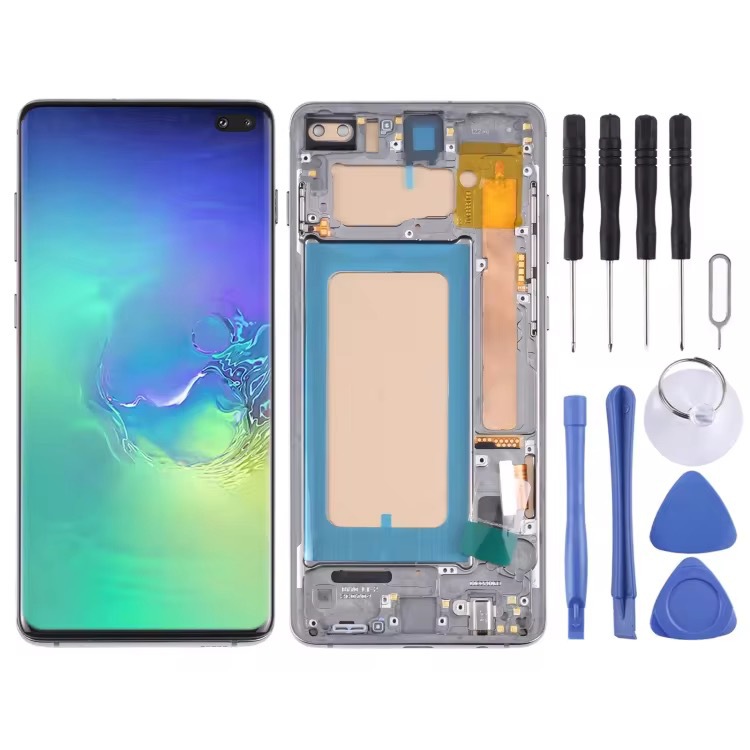
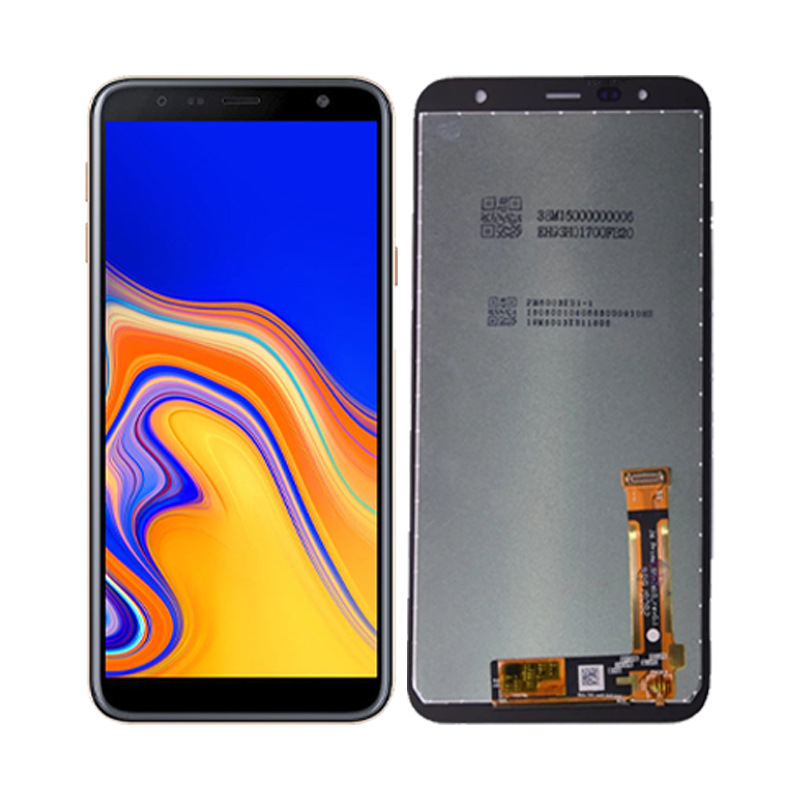
Hardware problems can also lead to a black screen. This can include a faulty charging port, water damage, screen damage, or even issues with the battery. If the hardware is damaged, it may require professional repair or replacement of certain components.
Charging Issues
A low or dead battery can cause your phone’s screen to go black. Additionally, if there’s a problem with the charging port or the battery itself, it can prevent your phone from charging properly and lead to a black screen.
Troubleshooting Steps
Basic Fixes
The first step in troubleshooting a black screen is to try some basic fixes. These include:
- Performing a soft reset: Press and hold the Power button and Volume Down button simultaneously for about 10-20 seconds until the phone restarts. This can often resolve temporary software glitches causing the black screen.
- Checking the battery: If your phone’s battery is low, charge it for at least 30 minutes to see if it resolves the issue. If the battery is completely dead, you may need to replace it.
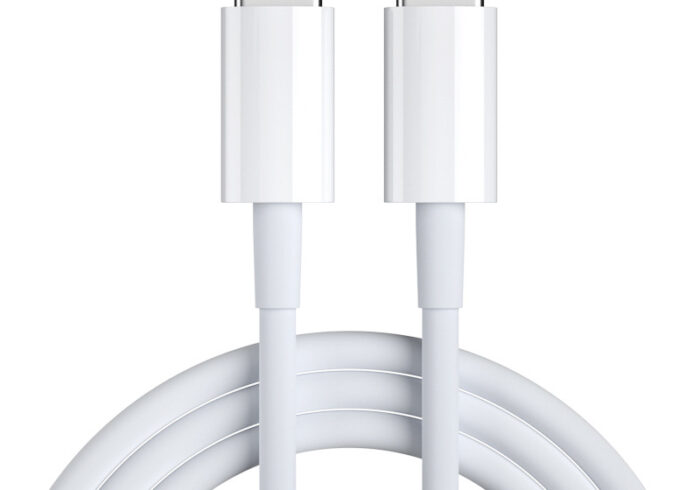
- Inspecting the charger and cable: Examine the charger and cable for any signs of wear and tear. Try using a different charger to see if the issue persists.
Advanced Fixes
If the basic fixes don’t work, you may need to try more advanced troubleshooting steps:
- Booting into Safe Mode: This can help you determine if a third-party app is causing the issue. To enter Safe Mode, press and hold the Power button until you see the power menu, then tap and hold the “Power Off” option until the Safe Mode prompt appears. If the screen displays correctly in Safe Mode, an app may be the culprit.
- Wiping the cache partition: This can clear out any corrupted temporary system data that may be causing the black screen. To do this, power off your device, press and hold the Power and Volume Down buttons simultaneously until the device turns on, use the volume buttons to navigate to the “Wipe cache partition” option, then press the power button to select it. Finally, highlight the “Reboot system now” option using the volume buttons and press the power button to select it.
- Performing a factory reset: If all else fails, a factory reset may be necessary. This will erase all data on your device, so be sure to back up any important information first. You can perform a factory reset by going to Settings > Backup & reset > Factory data reset. If you cannot access the settings due to the black screen, you may need to use physical buttons to perform the reset by entering recovery mode.
When to Seek Professional Help
If you’ve tried all the troubleshooting steps and your Samsung phone screen remains black, it may be time to seek professional assistance. This is especially true if you suspect there’s hardware damage, such as a cracked screen, water damage, or issues with the charging port or battery. Visiting a Samsung – authorized repair center or contacting Samsung Support can provide you with the necessary repairs or guidance.

Preventive Measures
To prevent your Samsung phone screen from going black in the future, consider taking the following precautions:
- Keep your software updated: Regularly check for and install software updates to ensure your device is running the latest version of the operating system.
- Avoid physical damage: Be careful not to drop your phone and protect it from water exposure. Using a protective case and screen protector can also help.
- Use a reliable charger: Invest in a good quality charger and cable to avoid charging issues.
- Monitor your battery health: Keep an eye on your battery’s health and replace it if it shows signs of degradation.
Conclusion
Dealing with a Samsung phone screen that went black can be a stressful experience, but with the right troubleshooting steps, many issues can be resolved. Start with basic fixes like a soft reset and checking the battery, and if those don’t work, move on to more advanced solutions such as booting into Safe Mode or performing a factory reset. If all else fails, don’t hesitate to seek professional help. By taking preventive measures, you can also reduce the likelihood of encountering this problem in the future.
How to Purchase:https://looperbuy.com/search?keywords=samsung+phone+screen+went+black
Frequently Asked Questions
Q: What are some common causes of a black screen on a Samsung phone?
A: Common causes include software glitches, hardware issues like a faulty charging port or screen damage, water damage, and battery problems.
Q: How can I troubleshoot a black screen on my Samsung phone?
A: Start by performing a soft reset, checking the battery and charger, and inspecting for physical damage. If the issue persists, try booting into Safe Mode, wiping the cache partition, or performing a factory reset.
Q: Can a black screen issue be fixed without professional help?
A: Many black screen issues can be resolved with basic troubleshooting steps. However, if these methods fail and you suspect hardware damage, it’s advisable to consult a professional technician.
Q: What should I do if my Samsung phone screen remains black after a factory reset?
A: If the screen remains black after a factory reset, it’s likely that there’s hardware damage. In this case, you should seek professional repair assistance.
Q: How can I prevent my Samsung phone screen from going black in the future?
A: Keep your software updated, protect your phone from physical damage, use a reliable charger, and monitor your battery health.
Hot Tags: Samsung Phone Screen Went Black; Samsung Phone Screen Issue Troubleshooting; Samsung Phone Screen Repair Guide; Samsung Phone Black Screen Solutions; Samsung Galaxy Phone Screen Problems; Fix Samsung Phone Black Screen; Samsung Phone Display Not Working; Samsung Phone Screen Went Black But Working; Samsung Phone Screen Black After Update; Samsung Phone Screen Black Due to Hardware Issues