Fastboot mode is a crucial feature for users of Redmi phones, allowing them to perform various system-level tasks. This article will delve into what fastboot mode is, how to access it, common issues users face, and solutions to those problems. By the end, you will have a thorough understanding of fastboot mode and how to manage it effectively.
Table of Contents
What is Fastboot Mode?
Fastboot mode is a protocol that allows you to communicate with your device’s bootloader. It is primarily used for flashing images, unlocking the bootloader, and performing system recovery tasks. This mode is particularly useful for developers and advanced users who want to modify their devices or troubleshoot issues.
Key Features of Fastboot Mode
- Flashing Firmware: Users can flash custom ROMs or recoveries, which can enhance the functionality of their devices or restore them to factory settings.
- Unlocking Bootloader: Fastboot allows users to unlock their device’s bootloader, which is necessary for rooting or installing custom software. This process opens up a world of customization options.
- Recovery Options: It provides options to recover the device from various issues, including boot loops and system crashes. Users can perform a factory reset or wipe cache partitions to resolve software-related problems.
How to Access Fastboot Mode on Redmi Phones
Accessing fastboot mode on a Redmi phone is straightforward. Here’s how you can do it:
Method 1: Using Hardware Buttons
- Power Off the Device: Ensure your Redmi phone is completely turned off.
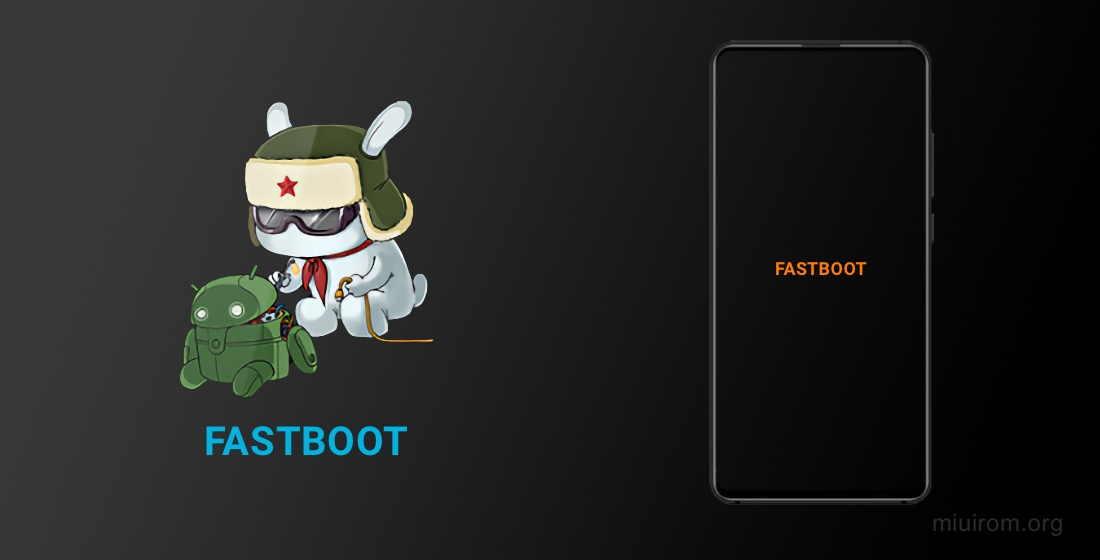
- Press and Hold Buttons: Simultaneously press and hold the Volume Down and Power buttons until the fastboot screen appears.
- Release the Buttons: Once the fastboot logo appears, you can release the buttons.
Method 2: Using ADB Commands
If you have ADB (Android Debug Bridge) set up on your computer, you can also boot your device into fastboot mode using a command:
- Connect Your Phone: Use a USB cable to connect your Redmi phone to your computer.
- Open Command Prompt: Navigate to the folder where ADB is installed and open a command prompt window.
- Enter Command: Type
adb reboot bootloaderand press Enter. Your device will reboot into fastboot mode.
Common Issues with Fastboot Mode
While fastboot mode is a powerful tool, users often encounter issues that can be frustrating. Here are some common problems and their solutions.
Issue 1: Stuck on Fastboot Screen
One of the most common issues is getting stuck on the fastboot screen. This can happen due to various reasons, such as a failed update or a corrupted system file.
Solution
- Force Restart: Press and hold the Power button for about 10-15 seconds until the device restarts.
- Use Recovery Mode: If the device remains stuck, you can enter recovery mode by holding the Volume Up and Power buttons. From there, you can perform a factory reset.
Issue 2: Unable to Exit Fastboot Mode
Sometimes, users find it challenging to exit fastboot mode, which can be frustrating.
Solution
- Power Button Method: Hold the Power button for about 40 seconds. This should force the device to reboot.
- Using ADB: If you have ADB set up, connect your device to the computer and use the command
fastboot rebootto exit fastboot mode.
Issue 3: Fastboot Not Recognizing Device
If your computer does not recognize your device in fastboot mode, it could be due to driver issues.
Solution
- Install Drivers: Ensure that you have the correct USB drivers installed for your Redmi device. You can download them from the official Xiaomi website.
- Try Different USB Ports: Sometimes, switching USB ports can resolve connectivity issues.
Advanced Fastboot Commands
For users who are comfortable with command-line interfaces, fastboot offers several commands that can be useful for managing your device.
Flashing a Custom Recovery
To flash a custom recovery like TWRP, you need to have the recovery image file ready. This process allows you to install custom ROMs or make backups of your current system.
Unlocking the Bootloader
To unlock the bootloader, you will need to enable OEM unlocking in the developer options of your device. This step is crucial as it allows you to modify the system files.
Locking the Bootloader
If you need to relock the bootloader after making modifications, this is essential for maintaining the security of your device. It ensures that unauthorized changes cannot be made to the system.
Tips for Using Fastboot Mode Safely
- Backup Your Data: Always back up your data before performing any operations in fastboot mode, as many commands can lead to data loss. Use cloud services or external storage to keep your data safe.
- Follow Instructions Carefully: When flashing images or unlocking the bootloader, follow instructions from reliable sources to avoid bricking your device. Look for guides that are specific to your device model.
- Use Official Tools: Whenever possible, use official Xiaomi tools and software to manage your device. This reduces the risk of errors and ensures compatibility.
Understanding the Risks of Fastboot Mode
While fastboot mode is a powerful tool, it comes with its risks. Users should be aware of the potential consequences of using fastboot commands, especially when flashing firmware or unlocking the bootloader. Here are some risks to consider:
Bricking Your Device
One of the most significant risks is bricking your device, which means it becomes non-functional. This can happen if you flash the wrong firmware or if the flashing process is interrupted. To mitigate this risk, always ensure that you are using the correct files for your specific device model.
Warranty Void
Unlocking the bootloader often voids the warranty of your device. If you encounter hardware issues after unlocking, the manufacturer may refuse to provide support. It’s essential to weigh the benefits of customization against the potential loss of warranty.
Data Loss
Many fastboot commands, especially those related to unlocking the bootloader or performing factory resets, can lead to data loss. Always back up your important files before proceeding with any fastboot operations.

Troubleshooting Fastboot Mode Issues
If you encounter issues while using fastboot mode, here are some troubleshooting steps you can take:
Check USB Connection
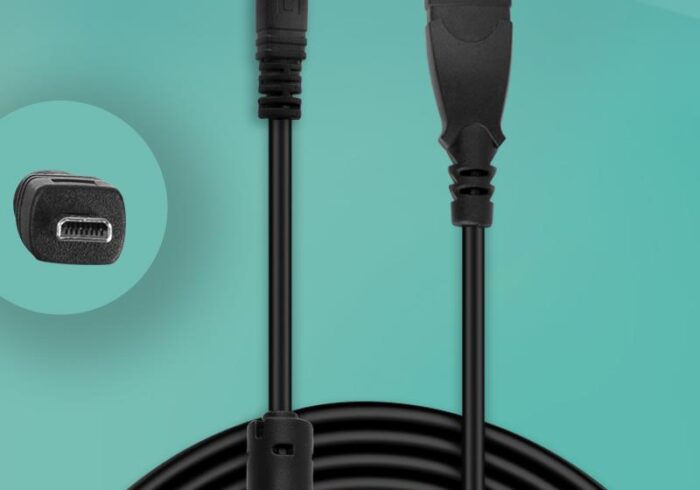
Ensure that your USB cable is functioning correctly and that it is securely connected to both your device and the computer. A faulty cable can lead to communication issues.
Update ADB and Fastboot Tools
Make sure you are using the latest version of ADB and fastboot tools. Outdated software can cause compatibility issues with newer devices.
Use a Different Computer
If your device is not recognized in fastboot mode, try using a different computer. This can help determine if the issue is with your device or the computer itself.
Conclusion
Fastboot mode is an invaluable tool for Redmi phone users, especially for those who like to customize their devices or troubleshoot issues. Understanding how to access and use fastboot mode can save you time and frustration. Whether you are flashing a new ROM or recovering from a system failure, knowing the ins and outs of fastboot will empower you to take control of your device.
How to Purchase:https://looperbuy.com/search?keywords=redmi+phone+fastboot+screen
Frequently Asked Questions
- What is fastboot mode? Fastboot mode is a protocol that allows users to communicate with their device’s bootloader for tasks like flashing firmware and unlocking the bootloader.
- How do I access fastboot mode on my Redmi phone? You can access fastboot mode by turning off your device and then pressing and holding the Volume Down and Power buttons simultaneously.
- What should I do if my device is stuck on the fastboot screen? Try force restarting your device by holding the Power button for 10-15 seconds. If that doesn’t work, enter recovery mode and perform a factory reset.
- Can I exit fastboot mode without losing data? Yes, you can exit fastboot mode by simply rebooting the device using the Power button, which should not affect your data.
- Is it safe to unlock the bootloader? Unlocking the bootloader can void your warranty and erase all data on your device, so it should be done with caution and only if you understand the risks involved.