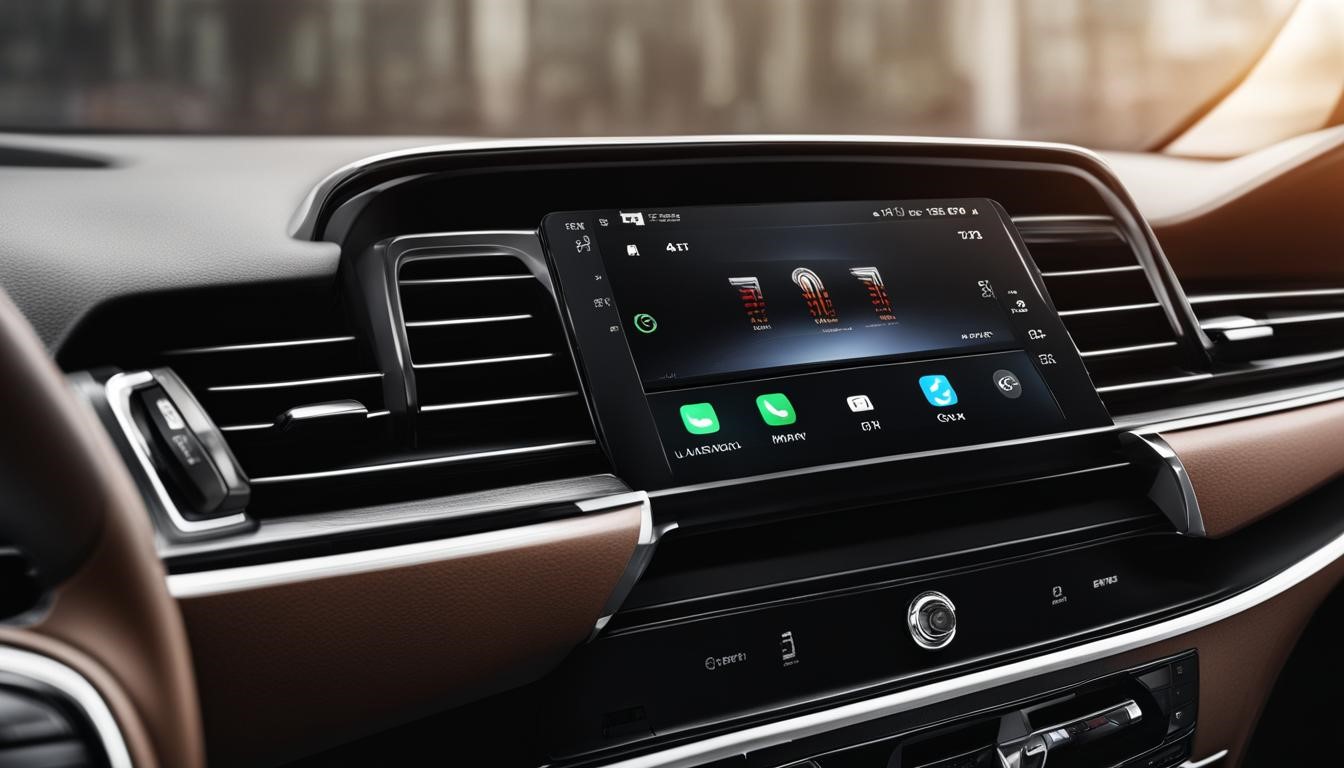
When you plug your iPhone into your car, you expect it to charge and connect seamlessly to Apple CarPlay. However, many users encounter the frustrating issue of their phone charging but CarPlay not working. This article will explore troubleshooting steps, compatibility issues, the impact of charging on CarPlay functionality, and the features of CarPlay that enhance your driving experience. Understanding these aspects can help you resolve issues and make the most of your in-car technology.
Table of Contents
Understanding the Problem
Why Phone Charging but CarPlay Not Working?
The issue of a phone charging while CarPlay is not functioning can stem from various factors. It may involve hardware problems, software glitches, or compatibility issues between your iPhone and the car’s infotainment system. For instance, a faulty USB port in the car or a damaged cable can lead to charging without data transfer, which is essential for CarPlay to function. Additionally, software updates on either the iPhone or the car’s system can introduce bugs that disrupt the connection. Understanding these factors is crucial for effective troubleshooting, as it allows you to pinpoint the root cause of the problem.
Troubleshooting Steps for CarPlay Issues
Check Your USB Cable
The first step in troubleshooting is to inspect the USB cable. A damaged or non-certified cable can lead to connectivity issues. Ensure that you are using an Apple-certified cable to avoid problems. Non-certified cables may not support data transfer, which is necessary for CarPlay to work. If you notice any fraying or damage to the cable, replacing it with a new, certified one can often resolve the issue. Additionally, trying a different USB port in the car can help determine if the problem lies with the cable or the port itself.
Restart Your Devices
Sometimes, a simple restart can resolve connectivity issues. Restart both your iPhone and your car’s infotainment system to refresh the connection. This process clears temporary glitches that may be affecting the connection. To restart your iPhone, press and hold the power button until the slider appears, then slide to power off. For the car’s system, consult the manual for the specific restart procedure, as it can vary by manufacturer. Restarting can often restore functionality and allow CarPlay to connect properly.
Update Your iPhone
Ensure that your iPhone is running the latest version of iOS. Apple frequently releases updates that fix bugs and improve compatibility with CarPlay. Go to Settings > General > Software Update to check for updates. Keeping your device updated is essential not only for CarPlay but also for overall device performance and security. If an update is available, download and install it, then reconnect your iPhone to the car. This step can resolve many issues related to connectivity and functionality.
Check CarPlay Settings
On your iPhone, navigate to Settings > General > CarPlay. Ensure that your car is listed and that CarPlay is enabled. If your car is not listed, try reconnecting it. Sometimes, the connection may not register properly, and re-establishing it can help. Additionally, check if there are any restrictions set on your iPhone that might prevent CarPlay from functioning. If necessary, remove your car from the list and set it up again to refresh the connection.
Reset Network Settings
If the problem persists, consider resetting your network settings. This can resolve issues related to Bluetooth and Wi-Fi connections that may affect CarPlay. Go to Settings > General > Reset > Reset Network Settings. Keep in mind that this action will erase saved Wi-Fi passwords and Bluetooth connections, so you will need to reconnect to your networks afterward. Resetting network settings can often clear up any underlying issues that are preventing CarPlay from working correctly.
Inspect Your Car’s Infotainment System
Sometimes, the issue lies within the car’s software. Check if your car’s infotainment system requires an update. Consult your vehicle’s manual or the manufacturer’s website for instructions on how to update the system. Manufacturers often release updates to improve system performance and compatibility with devices. If your car’s system is outdated, it may not support the latest features of CarPlay, leading to connectivity issues. Keeping the infotainment system updated is crucial for a seamless experience.
Compatibility Issues with CarPlay
Supported Devices
Not all iPhones and vehicles support CarPlay. Ensure that your iPhone model is compatible with CarPlay. Generally, iPhones from the iPhone 5 and later support this feature. Additionally, check if your vehicle’s make and model support CarPlay. Some manufacturers have specific models that are compatible, while others may require additional hardware or software updates. If you are unsure, visiting the manufacturer’s website or contacting customer support can provide clarity on compatibility.
iOS Version Compatibility
CarPlay functionality can also be affected by the iOS version. If you have recently updated your iPhone, it may lead to temporary compatibility issues. Always check for any known issues with the latest iOS version and CarPlay. Sometimes, new updates can introduce bugs that affect connectivity. If you suspect that a recent update is causing the problem, consider rolling back to a previous version if possible, or wait for a subsequent update that may fix the issue.
Vehicle Manufacturer Support
If you are unsure whether your vehicle supports CarPlay, consult the manufacturer. Some older models may not have the necessary hardware to support this feature, even if the iPhone is compatible. Additionally, some manufacturers may have specific requirements for enabling CarPlay, such as needing a particular trim level or package. Understanding your vehicle’s capabilities can help you determine if the issue lies with compatibility or if further troubleshooting is needed.
Impact of Charging on CarPlay Functionality
Charging Speed and Data Transfer
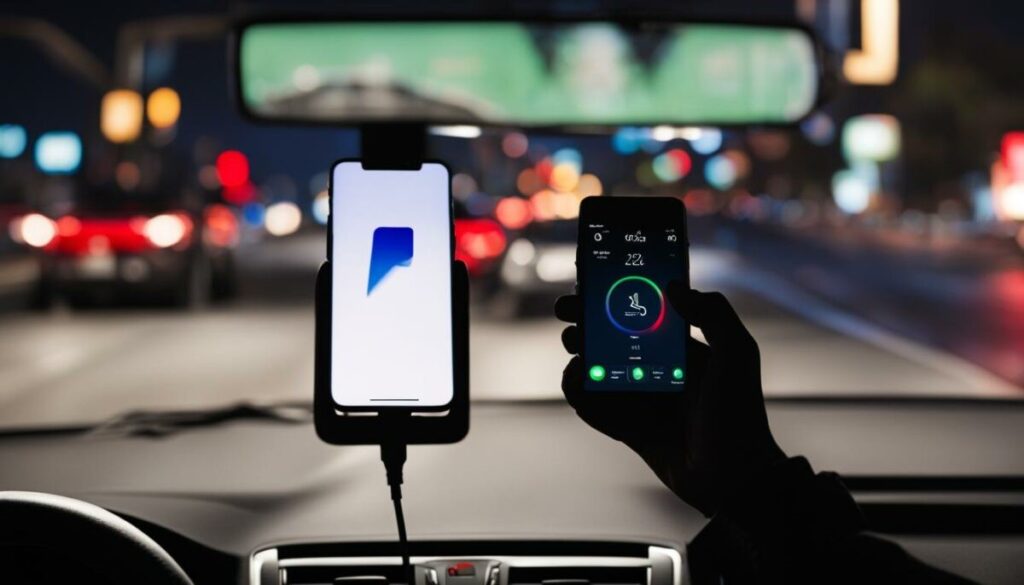
The method of charging can impact CarPlay’s performance. Fast charging methods provide higher amperage, which can enhance data transfer speeds between your iPhone and the car. If you are using a low-quality charger, it may not provide sufficient power for both charging and CarPlay functionality. This can lead to situations where the phone charges slowly or not at all while attempting to connect to CarPlay. Using a high-quality, certified charger can help ensure that both charging and data transfer occur smoothly.
Battery Drain Considerations
Using CarPlay can lead to increased battery drain on your iPhone. The constant connection and use of various apps can consume more power than usual. If you notice that your phone is charging but the battery percentage is not increasing, it may be due to the high power demand from CarPlay. In such cases, consider using a charger with a higher output or ensuring that your phone is not running too many background applications while connected to CarPlay. Monitoring battery usage can help you identify which apps are consuming the most power.
Wireless CarPlay Considerations
If you are using wireless CarPlay, the charging dynamics change. Wireless connections can be less stable and may not provide the same charging efficiency as wired connections. Ensure that your phone is adequately charged before using wireless CarPlay to avoid interruptions. Additionally, the distance between your phone and the car’s receiver can affect connectivity. If you experience issues, try moving your phone closer to the receiver or switching to a wired connection for a more stable experience.
Features of CarPlay and Their Importance
Navigation and Mapping
One of the standout features of CarPlay is its navigation capabilities. With apps like Apple Maps and Google Maps, drivers can receive real-time traffic updates and directions, making it easier to navigate unfamiliar areas. The integration of these apps allows for voice-guided navigation, which helps keep your eyes on the road. Additionally, CarPlay can suggest alternate routes based on current traffic conditions, enhancing your overall driving experience and efficiency.
Music and Entertainment
CarPlay allows users to access their favorite music and podcast apps directly from the car’s dashboard. This integration enhances the driving experience by providing easy access to entertainment without distractions. Users can control playback using voice commands or the car’s touchscreen, making it safer to enjoy music or podcasts while driving. The ability to create playlists and access streaming services directly through CarPlay adds to the convenience and enjoyment of long drives.
Messaging and Communication
With CarPlay, drivers can send and receive messages using voice commands, ensuring that they stay connected while keeping their hands on the wheel. This feature promotes safer driving habits by minimizing distractions. CarPlay reads incoming messages aloud, allowing users to respond without taking their eyes off the road. This hands-free communication is essential for maintaining focus while driving, making it easier to stay in touch with friends and family.
Siri Integration
Siri plays a crucial role in the CarPlay experience. Users can control various functions using voice commands, making it easier to navigate, play music, or send messages without taking their eyes off the road. The voice recognition capabilities of Siri allow for a more intuitive interaction with the car’s system, reducing the need for manual input. This feature enhances safety and convenience, allowing drivers to keep their focus on the road while still accessing essential functions.
Customization Options
CarPlay offers customization options, allowing users to arrange their favorite apps for quick access. This feature enhances usability and ensures that drivers can find what they need without hassle. Users can prioritize apps based on their preferences, making it easier to access navigation, music, or messaging apps with just a tap. Customization not only improves the user experience but also allows for a more personalized driving environment.
Conclusion
Experiencing the issue of phone charging but CarPlay not working can be frustrating, but understanding the troubleshooting steps, compatibility issues, and the impact of charging can help resolve the problem. By following the outlined steps, you can enhance your CarPlay experience and enjoy the seamless integration of your iPhone with your vehicle. Staying informed about the features and capabilities of CarPlay can also help you make the most of this technology, ensuring a safer and more enjoyable driving experience.
How to purchase:https://looperbuy.com/search?keywords=Phone+Charging
Frequently Asked Questions
1. Why is my phone charging but CarPlay not connecting?
This could be due to a faulty USB cable, outdated software, or compatibility issues between your iPhone and the car’s system.
2. How can I check if my car supports CarPlay?
Consult your vehicle’s manual or the manufacturer’s website to verify if your car model supports CarPlay.
3. Does using CarPlay drain my iPhone’s battery?
Yes, using CarPlay can increase battery drain due to the constant connection and use of apps. Ensure your phone is adequately charged before use.
4. Can I use CarPlay wirelessly?
Yes, many newer vehicles support wireless CarPlay, but ensure your phone is charged as wireless connections can be less efficient.
5. What should I do if my CarPlay is still not working after troubleshooting?
If the issue persists, consider visiting a service center for your vehicle or contacting Apple Support for further assistance.