In today’s interconnected world, transferring data between phones is a common task for many users. Whether you’re switching to a new device, sharing files with friends, or backing up important information, a reliable USB cable is essential. This comprehensive guide will explore everything you need to know about USB cables for transferring data between phones.
Table of Contents
Understanding USB Cables
Before diving into the specifics of data transfer, it’s important to understand the different types of USB cables available.
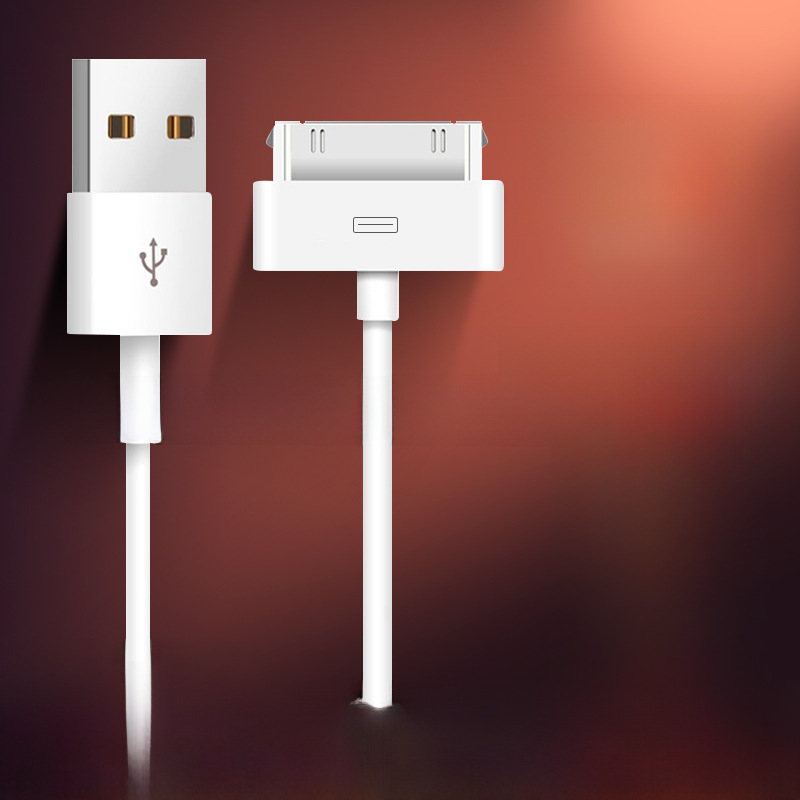
USB-A to USB-C
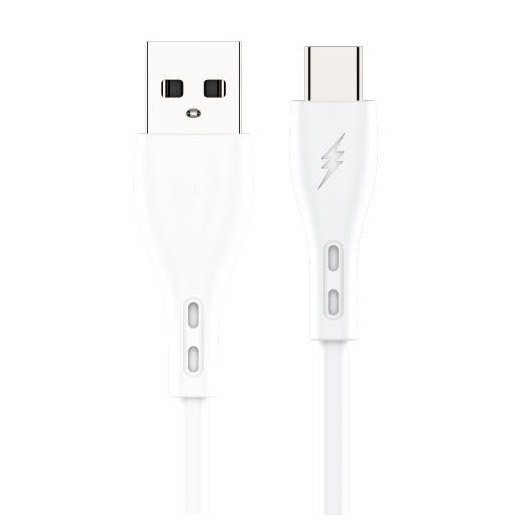
This type of cable is widely used for connecting various devices. The USB-A end is compatible with most computers and chargers, while the USB-C end connects to newer smartphones and tablets.
USB-C to USB-C
As more devices adopt the USB-C standard, these cables are becoming increasingly popular. They offer fast data transfer speeds and are ideal for connecting two modern devices.
USB-A to Micro-USB
Although micro-USB is gradually being phased out, it’s still used by some older devices. If you have an older phone, this type of cable might be necessary for data transfer.
Key Features to Consider
When selecting a USB cable for data transfer, there are several important features to consider.
Speed
Data transfer speed is crucial for efficiently moving files between devices. Look for cables that support high-speed data transfer protocols like USB 3.0 or USB 3.1.
Durability
A durable cable will withstand frequent use and last longer. Consider cables with reinforced connectors and braided outer layers for added strength.
Compatibility
Ensure the cable is compatible with both phones you plan to connect. Check the USB ports on each device and choose a cable that matches those requirements.
How to Transfer Data Between Phones Using a USB Cable
Transferring data between phones using a USB cable is a straightforward process once you understand the steps involved.
Connecting the Phones
First, connect one end of the USB cable to one phone and the other end to the second phone. Make sure the cables are securely plugged in to avoid connection issues.
Enabling Data Transfer Mode
On both phones, you may need to enable data transfer mode. This is typically found in the phone’s settings under “USB options” or “USB mode.” Select the appropriate option to allow file transfer between the devices.
Navigating File Systems
Once connected, use the file manager on each phone to navigate and select the files you want to transfer. You can copy files from one phone and paste them onto the other.
Top USB Cables for Phone Data Transfer in 2024
Here are some of the best USB cables currently available for transferring data between phones.
Anker PowerLine II USB-C to USB-C
This cable offers fast data transfer speeds and is built to last. It’s compatible with a wide range of devices and comes with a generous warranty.
AmazonBasics USB-C to USB-A Cable
A reliable and affordable option, this cable provides stable connections and efficient data transfer. It’s perfect for everyday use and comes in various lengths.
Belkin MIXIT USB-C to USB-C Cable
Known for its sleek design and durability, the Belkin MIXIT cable is a great choice for those who value both style and functionality. It supports high-speed data transfer and has a reinforced connector for added strength.
Troubleshooting Common Issues
Even with the best equipment, you might encounter some issues during data transfer. Here are some common problems and how to resolve them.
Connection Problems
If your phones aren’t connecting properly, try reseating the USB cable or using a different port. Ensure both devices are powered on and that data transfer mode is enabled.
Slow Transfer Speeds
If data transfer is slower than expected, check for any background processes that might be affecting performance. Close unnecessary apps and ensure both devices have sufficient battery life.
Incompatible File Types
Some file types may not transfer seamlessly between different phone operating systems. Convert files to compatible formats if necessary or use cloud services as an alternative transfer method.
Conclusion
Choosing the right USB cable for transferring data between phones is essential for a smooth and efficient process. By understanding the different types of cables, considering key features, and following proper transfer procedures, you can easily move files between your devices. Whether you’re using a USB-A to USB-C, USB-C to USB-C, or USB-A to Micro-USB cable, ensuring compatibility and quality will make all the difference in your data transfer experience.
How to Purchase:https://looperbuy.com/search?keywords=usb+cable+to+transfer+data+between+phones
Frequently Asked Questions
Q: Can I use any USB cable to transfer data between phones?
A: While many USB cables can transfer data, the speed and reliability can vary. For the best experience, use a cable specifically designed for data transfer that matches the ports on your phones.
Q: How long does it take to transfer data between phones using a USB cable?
A: Transfer times depend on the amount of data, the speed of the cable, and the devices involved. Smaller files transfer quickly, while larger files or multiple files may take several minutes.
Q: Are there any security risks when transferring data between phones via USB?
A: Generally, transferring data via USB is secure. However, ensure both devices are trusted and avoid using damaged cables that might interfere with the connection.
Q: Can I transfer apps between phones using a USB cable?
A: Most apps cannot be directly transferred via USB due to licensing and installation restrictions. You’ll need to reinstall apps on the new device from the app store.
Q: How do I know if my USB cable supports fast data transfer?
A: Look for cables labeled with USB 3.0, USB 3.1, or higher. These standards support faster data transfer speeds compared to older USB 2.0 cables.
Hot Tags: Usb Cable To Transfer Data Between Phones; Phone Data Transfer Cables; Best Usb Cables For Phones; Usb-C To Usb-C Cable; Usb-A To Usb-C Cable; Fast Data Transfer Cables; Phone File Transfer; Reliable Usb Cables; Usb Cable Compatibility; Usb Data Transfer Speed