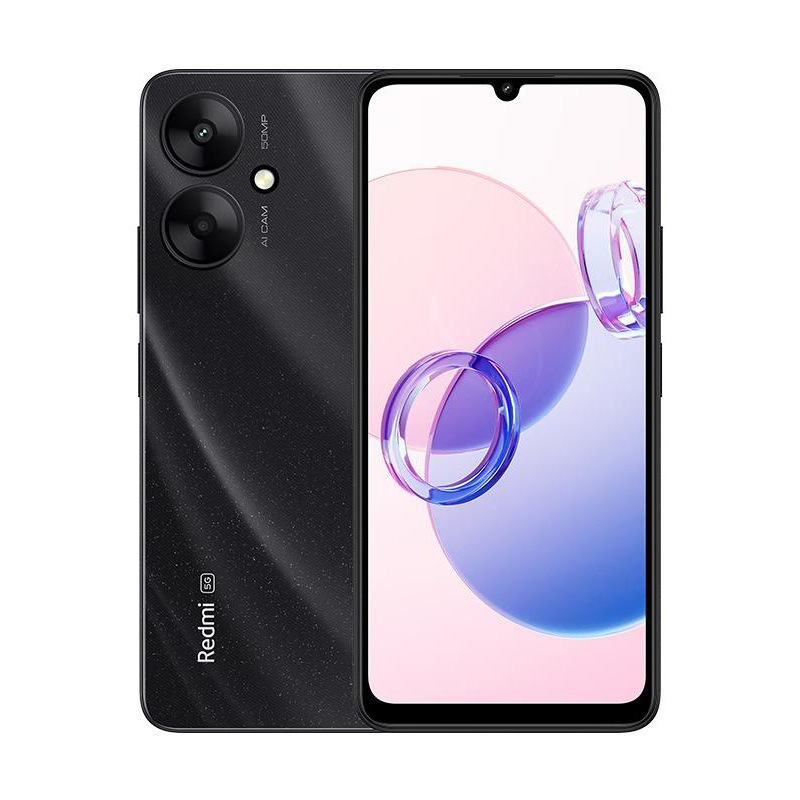
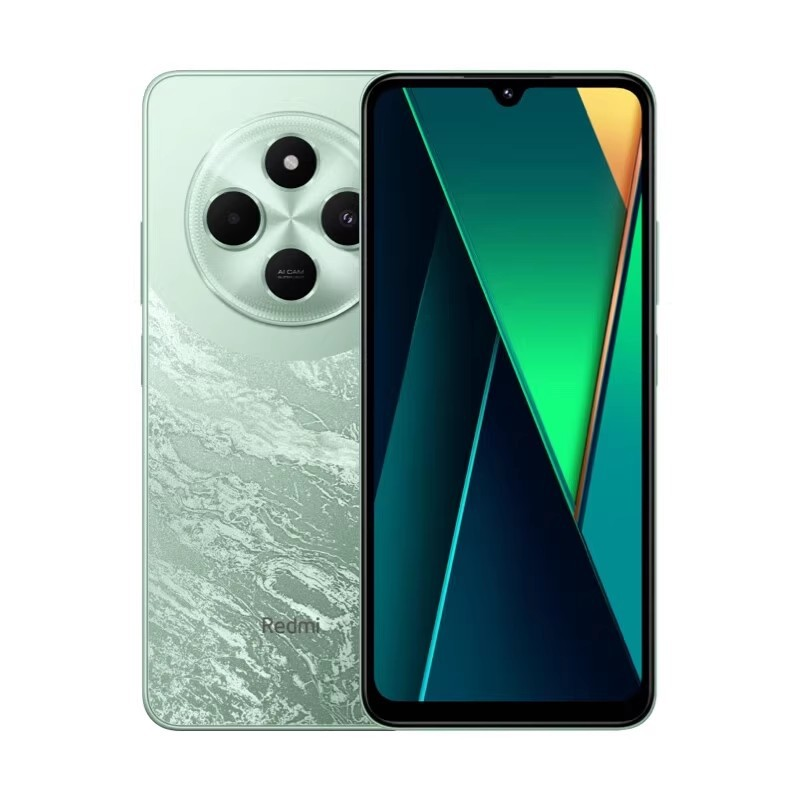
The lock screen on Redmi phones is more than just a security barrier—it’s a gateway to quick actions, notifications, and personal style. As part of Xiaomi’s MIUI ecosystem, Redmi devices offer a range of lock screen features, from fingerprint authentication to dynamic wallpapers. However, users often encounter issues like unresponsive screens, forgotten passwords, or accidental triggers. This comprehensive guide explores how to optimize your Redmi lock screen experience, resolve common problems, and unlock hidden customization options.
Table of Contents
Understanding Redmi Lock Screen Features
Core Security Options
Redmi phones provide multiple lock screen security methods:
• “Pattern, PIN, and Password”: Traditional methods with customizable complexity.
• “Fingerprint Scanner”: Fast unlocking via side-mounted or under-display sensors (depending on the model).
• “Face Unlock”: Uses the front camera for quick access, though less secure than fingerprints.
Quick Access Tools
• “Shortcuts”: Customizable icons for flashlight, camera, or voice recorder (varies by MIUI version).
• “Notification Previews”: Display app alerts without unlocking the device (privacy settings adjustable).
Aesthetic Customization
• “Dynamic Wallpapers”: Animated or theme-based backgrounds.
• “Always-On Display (AOD)”: Shows time, date, and notifications on select models.
Common Redmi Lock Screen Issues and Fixes
Unresponsive Lock Screen
Causes
• Software glitches after MIUI updates.
• Screen protector interference with touch sensitivity.
Solutions
- Restart the device to reset temporary software errors.
- Remove screen protectors or adjust touch sensitivity settings (in “Settings > Display”).
- Perform a factory reset if the issue persists (back up data first).
Forgotten Password or Pattern
Recovery Steps
- Enter incorrect attempts until the “Forgot Pattern” option appears.
- Sign in to your Xiaomi account to reset the password.
- Use Mi PC Suite to bypass the lock screen (requires prior USB debugging access).
Accidental Pocket Dialing or App Launches
Prevention Tips
• Enable Pocket Mode (in “Settings > Lock Screen”) to disable touch input when the phone is in a dark environment.
• Disable “Double-tap to wake” or “Raise to wake” features if prone to accidental triggers.
Advanced Lock Screen Customization
Third-Party Apps and Themes
• “Microsoft Launcher”: Adds widgets and calendar integration to the lock screen.
• “MIUI Theme Store”: Download custom lock screen themes with unique animations and fonts.
Automating Lock Screen Actions
• Use Tasker or MacroDroid to automate tasks like enabling Wi-Fi when unlocking.
• Set location-based rules (e.g., disable passwords at home via “Smart Lock”).
Security Risks and Mitigation
Biometric Vulnerabilities
• “Fake Fingerprints”: Low-quality scanners may be tricked by silicone replicas. Use complex passwords as a backup.
• “Face Unlock Spoofing”: Photos or videos can sometimes bypass 2D face recognition. Disable this feature for high-security needs.
Privacy Concerns with Notifications
• Hide sensitive content by navigating to Settings > Notifications > Lock Screen Notifications and selecting “Hide Content.”
Optimizing Battery Life with Lock Screen Settings
Managing Always-On Display
• Limit AOD usage to specific hours or disable it entirely (in “Settings > Always-On Display”).
• Switch to a static clock style to reduce power consumption.
Background Processes
• Restrict apps like Facebook or Instagram from refreshing in the background via “Settings > Battery > Background Restrictions”.
Future Trends in Redmi Lock Screen Technology
Under-Display Cameras
Future models may integrate front cameras beneath the screen, allowing full-screen lock wallpapers without notches.
Enhanced AI Features
• Predictive unlock: Automatically bypass the lock screen when the device detects trusted locations or Bluetooth devices.
• Context-aware wallpapers: Dynamic backgrounds that change based on time, weather, or user activity.
Conclusion
The Redmi phone lock screen balances security, convenience, and personalization, but mastering it requires understanding its features and potential pitfalls. By leveraging built-in tools like Pocket Mode, exploring third-party customization, and staying vigilant about security risks, users can enhance both functionality and aesthetics. As Xiaomi continues to innovate, future updates will likely bring smarter, more intuitive lock screen experiences to Redmi devices.
How to Purchase:https://looperbuy.com/search?keywords=redmi+phone
Frequently Asked Questions
· How do I disable the lock screen completely on my Redmi phone?
Go to “Settings > Lock Screen > Screen Lock”, select “None,” and confirm your current password. Note: This compromises device security.
· Why does my Redmi lock screen freeze after an update?
Software updates can cause temporary glitches. Clear the system cache via recovery mode or perform a factory reset after backing up data.
· Can I use third-party widgets on the Redmi lock screen?
MIUI restricts lock screen widgets, but apps like WidgetLocker allow limited customization. Rooting the device unlocks more options.
· How do I fix a slow fingerprint sensor on the lock screen?
Re-register your fingerprint in “Settings > Passwords & Security > Fingerprint Unlock”, ensuring your finger covers the sensor fully during setup.
· Is Face Unlock safe for banking apps on Redmi phones?
No. Most banking apps require fingerprint or PIN authentication, as Face Unlock (2D-based) is less secure.