Table of Contents
Why Your Redmi Phone Shows Ads
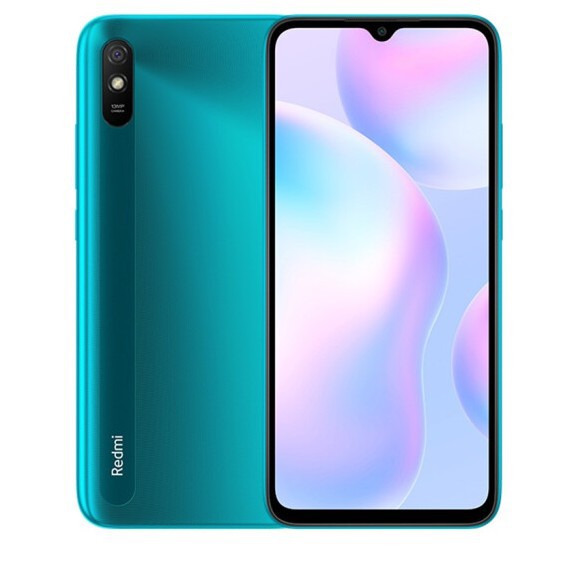
Redmi phones, powered by Xiaomi’s MIUI and HyperOS systems, often display ads in system apps and folders. These ads are part of Xiaomi’s monetization strategy to offer budget-friendly devices. They appear in various forms, such as recommended content in file managers, ads in the browser, security app recommendations, and more.
How to Disable Ads in Various Settings
System-Level Ad Settings
- MSA Service: Navigate to Settings > Password and Security > Authorization and Revocation. Find and disable the “msa” option, which is responsible for MIUI system ads.
- Ad Services: Go to Settings > Password and Security > Privacy > Ad Services. Toggle off “Personalized ad recommendations” to stop ads based on your personal data.
- Background Connections: Open the Security app, go to Data Transfer > Network Connections. Click the triple dot in the top-right corner and select “Background Connections.” Uncheck the “msa” box.
App-Specific Ad Settings
- File Manager: Open the File Manager app, tap the hamburger menu in the top-left corner, go to Settings > About, and toggle off “Recommendations”.
- Downloads App: Open the Downloads app, tap the three-dot menu in the top-right corner, go to Settings, and toggle off “Show recommended content”.
- Themes App: Open the Themes app, tap My Account in the bottom-right corner, tap the Settings gear icon, and toggle off “Personalized recommendations” and “Show ads”.
- Music App: Open the Music app, tap the menu button in the top-left corner, go to Settings > Advanced Settings, and toggle off “Show ads”.
- Browser App: Open the Browser app, go to Profile > Settings > Privacy & Security, and disable personalized services. Also, in Advanced Settings, enable “Ad Blocking”.
- Security App: Open the Security app, tap the cogwheel in the top-right corner, and toggle off recommendations. Do the same in Cleaner and Boost Speed settings.
Advanced Solutions for Ad Removal
Using ADB Commands
- Download ADB Tools: Download and install Xiaomi ADB Fastboot Tools on your computer.
- Enable USB Debugging: Turn on USB debugging on your Redmi phone.
- Connect Phone to PC: Connect your phone to the computer via USB.
- Run ADB Commands: Open the ADB tool, press the “Debloat” button, allow debugging on your phone, select “MiuiDaemon” and “msa,” and click “Uninstall”.
Installing a Custom ROM
Consider flashing a custom ROM like LineageOS. These ROMs often offer cleaner interfaces and fewer ads. However, this method is advanced and may void your warranty.
Conclusion
Ads on Redmi phones can be frustrating, but with the right steps, you can significantly reduce or eliminate them. By following the methods outlined in this article, you can enjoy a cleaner and more personalized experience on your Redmi device.
How to Purchase:https://looperbuy.com/search?keywords=redmi+phone
Frequently Asked Questions
Q: Why does my Redmi phone show ads?
A: Xiaomi includes ads in its MIUI and HyperOS systems as part of its monetization strategy to offer affordable devices. These ads appear in system apps and folders.
Q: Can I completely remove all ads on my Redmi phone?
A: While you can disable most ads through system settings and app-specific adjustments, it’s challenging to remove all ads completely without modifying the system.
Q: Will disabling ad services affect my phone’s functionality?
A: Disabling ad services generally won’t affect your phone’s core functionality but may limit some personalized recommendations.
Q: Are there any risks associated with using ADB commands to remove ads?
A: Using ADB commands can be complex and may void your warranty. It requires technical knowledge and caution.
Q: Can I use ad-blocking apps to prevent ads on my Redmi phone?
A: Yes, some third-party ad-blocking apps can help reduce ads. However, their effectiveness may vary, and they should be used cautiously.
Hot Tags: Redmi Phone Showing Ads On Screen; Redmi Phone Ads Removal; Xiaomi Ads Troubleshooting; MIUI Ad Settings; Redmi Ad Solutions; Xiaomi Ad Blocking; Redmi Phone Ad Issues; MIUI Ads Disable; Redmi Phone Ad Removal Guide; Xiaomi Ad Services