Table of Contents
Understanding the Redmi Home Screen Layout
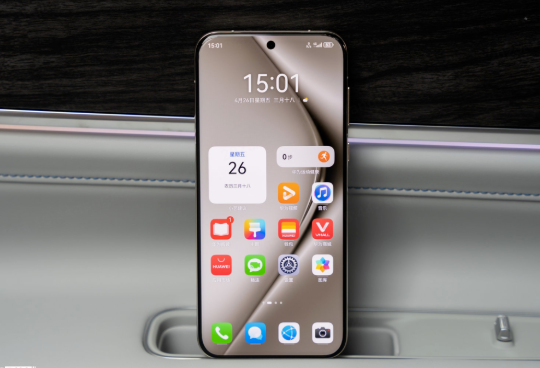
The home screen of a Redmi phone serves as the gateway to its features and functionalities, offering users a personalized and convenient digital space. Familiarizing yourself with the home screen layout is essential for optimizing usability and tailoring it to individual preferences.
Elements of the Home Screen
- App Icons: These are the visual representations of installed applications, providing quick access to their respective functionalities. Each app icon acts as a portal to a specific program or service, enabling seamless navigation within the device.
- Widgets: Widgets are dynamic components that display real-time information or provide quick actions without the need to open the associated app. They offer at-a-glance updates on various aspects such as weather, calendar events, news, and more, enhancing the interactive nature of the home screen.
- Dock: Typically located at the bottom of the home screen, the dock offers a fixed space for frequently used apps. It allows users to access essential applications with ease, reducing the time and effort required to locate and launch them.
- Wallpaper: The background image or wallpaper of the home screen contributes to the overall visual appeal and personalization of the device. It sets the tone for the user experience and can be customized to reflect individual preferences and aesthetics.
Navigation and Organization
- App Drawer: The app drawer houses all installed applications, providing a comprehensive view of the device’s software offerings. It serves as a centralized repository for apps, allowing users to locate and launch specific programs efficiently.
- Home Screen Panels: Redmi devices typically feature multiple home screen panels, enabling users to organize their app icons and widgets across different screens. This functionality facilitates the categorization of apps and the allocation of specific panels for distinct purposes or themes.
- Status Bar and Notifications: Positioned at the top of the home screen, the status bar displays essential information such as time, battery status, and connectivity indicators. It also serves as a conduit for incoming notifications, ensuring users stay informed about relevant updates and alerts.
Accessing Home Screen Layout Options
Accessing the home screen layout options on your Redmi device is the first step toward creating a personalized and efficient mobile interface. Redmi offers a user-friendly approach to customizing the home screen, allowing you to tailor the layout to suit your preferences and usage habits.
How to Access Home Screen Layout Options
- Long-Press on the Home Screen: To begin customizing your home screen layout, simply long-press on an empty area of the home screen. This action will prompt a menu to appear, providing you with a range of customization options to explore.
- Tap on “Settings”: Within the menu that appears after long-pressing the home screen, locate and tap on the “Settings” option. This will direct you to the home screen settings, where you can further refine the layout and appearance of your home screen.
- Explore Layout Options: Once in the home screen settings, navigate to the “Layout” or “Home Screen Layout” section. Here, you will find a selection of layout options to choose from, allowing you to modify the grid size, app icon arrangement, and overall structure of the home screen.
- Select Your Preferred Layout: Browse through the available layout options and select the one that best aligns with your preferences. Whether you prefer a spacious layout with larger app icons or a compact grid to fit more content on the screen, Redmi offers a variety of layout configurations to cater to diverse user preferences.
- Customize Additional Settings: In addition to selecting a layout, you may also have the option to customize additional settings such as icon size, label display, and screen orientation. These settings enable you to fine-tune the appearance and functionality of your home screen according to your specific requirements.
Customizing App Icons and Widgets
Customizing app icons and widgets adds a layer of personalization and usability to your home screen. With the flexibility to explore icon packs, individually customize icons, and access a wide array of widgets, you can infuse your home screen with a personalized touch while optimizing the accessibility and functionality of essential apps and information.
Customizing App Icons
- Changing Icon Packs: Redmi provides a variety of pre-installed icon packs that you can apply to instantly change the appearance of your app icons. To change icon packs, long-press the home screen, tap “Settings,” and navigate to the “Icon Pack” section to select your preferred option.
- Customizing Individual Icons: If you want to change the icons of specific apps, you can download and install third-party icon packs from the app store. Once installed, follow the same steps as changing icon packs and select the desired icon pack to apply it to your home screen.
Adding and Customizing Widgets
- Adding Widgets: Long-press the home screen, tap “Settings,” and navigate to the “Widgets” section. Here, you will find a variety of widgets to choose from. Simply drag the desired widget to your home screen and place it in the desired location.
- Customizing Widgets: Some widgets allow for customization. After adding a widget to your home screen, tap and hold it to enter the widget’s settings. You can adjust its size, appearance, display content, and more according to your preferences. For example, you can customize the content displayed on a calendar widget or the refresh frequency of a weather widget.
Changing Wallpapers and Themes
Changing wallpapers and themes offers a captivating way to breathe life into your home screen. Whether you opt for scenic landscapes, dynamic wallpapers, or vibrant themes with comprehensive customization options, Redmi empowers you to curate a cohesive and visually captivating home screen experience that resonates with your mood, style, and creative inclinations.
Changing Wallpapers
- Selecting from Pre-installed Wallpapers: Redmi offers a rich collection of pre-installed wallpapers. To change your wallpaper, long-press the home screen, tap “Settings,” and navigate to the “Wallpaper” section. Browse through the available wallpapers and select one you like to apply it to your home screen.
- Using Photos as Wallpapers: You can also set your favorite photos as wallpapers. Open the photo you want to use, tap the “Menu” button, and select “Set as Wallpaper.” Follow the on-screen instructions to crop and adjust the photo as needed before applying it as your home screen wallpaper.
Applying Themes
- Selecting from Pre-installed Themes: Redmi provides multiple pre-installed themes. To apply a theme, long-press the home screen, tap “Settings,” and navigate to the “Themes” section. Browse through the available themes and tap the one you like to preview its effects. Tap “Apply” to make it your home screen theme.
- Downloading and Installing New Themes: You can download and install new themes from the app store or other sources. After installation, follow the same steps as selecting from pre-installed themes to apply the new theme to your home screen.
Organizing Apps and Folders
Efficiently organizing apps and folders on your Redmi home screen is essential for streamlining access to your favorite apps and optimizing the overall visual layout. Redmi offers intuitive tools and features that empower you to arrange apps and create folders with ease, ensuring a clutter-free and personalized home screen experience.
App Arrangement
- Placing App Icons: Long-press an app icon to enter editing mode, enabling you to drag and place the app icons in your desired locations on the home screen. This flexibility allows you to prioritize frequently used apps and create a tailored layout that aligns with your workflow.
- Grouping Similar Apps: By categorizing apps into groups based on their functions or categories, you can create a more organized and accessible home screen. For instance, you can group social media apps, productivity tools, or entertainment apps together for convenient access.
Folder Creation
- Drag-and-Drop Method: To create a folder, simply drag one app icon onto another. This action automatically prompts the formation of a folder containing the selected apps. You can then customize the folder name to reflect the app category it represents.
- Customizing Folders: Redmi allows you to customize folder icons and names, providing a personalized touch to your home screen organization. By assigning distinct icons and descriptive names to folders, you can enhance visual clarity and navigation efficiency.
Smart App Suggestions
Redmi’s intelligent app suggestions feature further enhances the organization of your home screen. By analyzing your app usage patterns, Redmi can intelligently recommend app placements and folder arrangements, streamlining the process of optimizing your home screen layout.
Troubleshooting Common Issues
Even with the best intentions, issues can arise when customizing your Redmi home screen. Here are some common problems and how to address them:
Unable to Customize the Home Screen
- Check for Custom Launchers: Some custom launchers disable home screen customization. Go to Settings > Apps > Manage apps to see if a launcher app is listed. If so, you are using a custom launcher.
- Check for Parental Control Apps: Some parental control apps can disable home screen customization. Go to Settings > Security & Privacy > Parental Controls to see if a parental control app is enabled.
- Check Applied Themes: Some themes may disable home screen customization. Go to Settings > Wallpaper & Style > Themes and check if a theme is applied. If so, try removing or changing the theme.
- Check for MIUI Bugs: If none of the above solutions work, there may be a bug in MIUI preventing customization. You can try restarting your device, clearing the cache and data for the System Launcher app, resetting the home screen layout, or updating MIUI to the latest version.
Home Screen Layout Resets Automatically
- Check for System Updates: Outdated system versions may cause instability in the home screen layout. Go to Settings > About Phone > System Updates to check for and install any available updates.
- Disable Developer Options: Enabled developer options may interfere with the home screen layout. Go to Settings > Additional Settings > Developer Options and disable unnecessary options.
- Reset the Home Screen Layout: If the issue persists, you can try resetting the home screen layout. Go to Settings > Wallpaper & Style > Home Screen Layout > Reset to Default. Then, customize the layout again according to your preferences.
Conclusion
The home screen of your Redmi device serves as a dynamic canvas for personal expression and functional optimization. By exploring the diverse customization options available, you can transform your home screen into a reflection of your individuality and streamline your daily interactions with your device.
From accessing layout options to customizing app icons and widgets, changing wallpapers and themes, and organizing apps and folders, the customization journey on your Redmi device is a delightful exploration of personalization and user-centric design.
The ability to access home screen layout options provides a gateway to tailoring the visual structure and functionality of your home screen. Whether you prefer a spacious layout with larger app icons or a compact grid to fit more content on the screen, Redmi offers a variety of layout configurations to cater to diverse user preferences.
Customizing app icons and widgets adds a layer of personalization and usability to your home screen. With the flexibility to explore icon packs, individually customize icons, and access a wide array of widgets, you can infuse your home screen with a personalized touch while optimizing the accessibility and functionality of essential apps and information.
Changing wallpapers and themes offers a captivating avenue for breathing life into your home screen. Whether you opt for scenic landscapes, dynamic wallpapers, or vibrant themes with comprehensive customization options, Redmi empowers you to curate a cohesive and visually captivating home screen experience that resonates with your mood, style, and creative inclinations.
Efficiently organizing apps and folders ensures a clutter-free and personalized home screen experience. Redmi’s intuitive tools and features enable you to arrange apps, create folders, and benefit from smart app suggestions, contributing to the visual harmony and usability of your home screen.
In essence, the customization journey on your Redmi device is a testament to the brand’s commitment to empowering users to personalize their mobile experience. By embracing the myriad of customization options, you can elevate your home screen into a personalized hub that caters to your unique needs and aesthetic preferences, ultimately enhancing your overall mobile experience.
How to Purchase:https://looperbuy.com/search?keywords=redmi+phone+home+screen
Q&A
How do I unlock the home screen layout on my Redmi device?
To unlock the home screen layout on your Redmi device, long-press on an empty area of the home screen. A menu will appear. Tap on the “Settings” option, navigate to the “Layout” or “Home Screen Layout” section, and choose your preferred layout. You can also customize additional settings to fine-tune the appearance and functionality of your home screen.
How do I add apps to the home screen on my Redmi device?
To add apps to the home screen on your Redmi device, first unlock the device and navigate to the home screen. Locate the app drawer icon (usually represented by a grid of dots or a downward-facing arrow) and tap it to open the app drawer. Find the app you want to add and drag it to your desired location on the home screen. Once placed, the app icon will remain on the home screen for quick access.
How do I create app folders on my Redmi device?
To create app folders on your Redmi device, long-press on an app icon and drag it onto another app icon. This action automatically creates a folder containing the selected apps. You can then customize the folder name to reflect the app category it represents. You can also drag additional app icons into the folder to organize similar apps together.
How do I change the wallpaper on my Redmi device?
To change the wallpaper on your Redmi device, long-press the home screen, tap “Settings,” and navigate to the “Wallpaper” section. You can choose from pre-installed wallpapers or use your own photos. After selecting a wallpaper, you can crop and adjust it as needed before applying it to your home screen.
How do I customize the theme on my Redmi device?
To customize the theme on your Redmi device, long-press the home screen, tap “Settings,” and navigate to the “Themes” section. Browse through the available themes and tap the one you like to preview its effects. Tap “Apply” to make it your home screen theme. You can also download and install new themes from the app store or other sources.
How do I rearrange apps on the home screen of my Redmi device?
To rearrange apps on your Redmi device’s home screen, long-press on an app icon until the icons enter customization mode. Then, drag the app icon to your desired location on the home screen. You can also create app folders by dragging one app icon onto another. If your device has multiple home screens, you can move app icons between screens by dragging them toward the edge of the screen.