Table of Contents
Introduction
Experiencing a black screen on your Samsung phone can be both confusing and frustrating. Whether it happened suddenly while you were texting or after a system update, it’s a common issue that many users face. Fortunately, this guide will walk you through the reasons why your Samsung phone screen may go black and the steps you can take to resolve the problem and restore your device to full functionality.
Common Causes of a Black Screen
Software Issues
Software glitches are a common cause of black screens on Samsung phones. These can occur due to a variety of reasons, including recent software updates, corrupted apps, or even a failure to boot properly. Sometimes, simple errors during updates can cause the black screen problem.
Hardware Malfunctions
Physical damage to your Samsung phone can also lead to a black screen. This includes cracked screens, faulty displays, or broken connections within the device. If your phone has been dropped or exposed to water, it could be experiencing hardware failure.
Battery Problems
A low or dead battery can cause your phone’s screen to go black. Additionally, charging issues such as a faulty charging port or cable can prevent the phone from receiving adequate power, leading to a black screen.
Quick Fixes for a Black Screen
Force Restart Your Phone
A simple reboot can solve many smartphone problems. To force restart your Samsung device, follow these steps:
- For Samsung Galaxy devices with a home button:
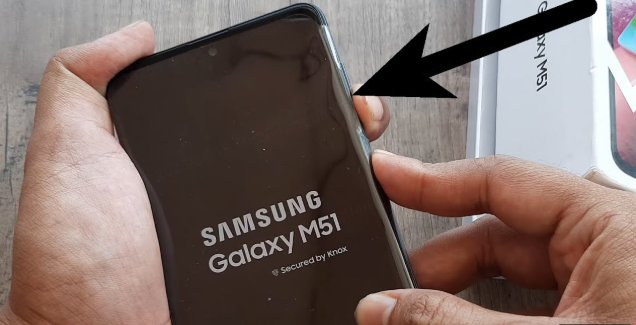
- Press and hold the Power button and the Home button simultaneously for about 10 to 20 seconds until the Samsung logo appears.
- For Samsung Galaxy devices without a home button:
- Press and hold the Power button and the Volume Down button at the same time until you see the Samsung logo.
Charge Your Device
Sometimes, the black screen issue is merely a result of a drained battery. To check the battery status:
- Connect your phone to a charger and let it charge for at least 30 minutes.
- Try turning it on again by pressing the Power button.
Troubleshooting Hardware Problems
Check for Physical Damage
Inspect your phone for any visible signs of damage. Look for:
- Cracks on the screen
- Dents or deformities on the body of the phone
- Signs of water damage, such as discoloration or corrosion around ports
Examine Connections and Components
If you’re comfortable opening the device:
- Disconnect the Battery: If you can safely access the battery, disconnect it for a few minutes before reconnecting it. This can help reset the internal circuitry.
- Inspect the Screen Connection: If you’re experienced in smartphone repairs, check the display connector for any loose connections.
Troubleshooting Software Problems
Boot into Safe Mode
Booting your Samsung phone into safe mode can help determine whether a third-party app caused the problem. To boot into safe mode:
- Turn off your device completely.
- Power it back on, and once you see the Samsung logo, press and hold the Volume Down button.
- Continue holding the button until your device finishes booting.
- You should see “Safe Mode” in the bottom corner of your screen.
If your device works in safe mode, uninstall any recently installed applications one by one to identify the culprit.
Perform a Wipe Cache Partition
Clearing the cache can significantly improve device performance and may address the black screen issue. To do this:
- Power off your device.
- Press and hold the Power button, Volume Up button, and Home button until the Android logo appears.
- Use the Volume buttons to navigate to the “Wipe Cache Partition” option and select it using the Power button.
- Confirm the action, and restart your phone.
Factory Reset as a Last Resort
If other troubleshooting options have failed, you may want to consider performing a factory reset. This will erase all data on the device, so ensure crucial data is backed up first.
How to Perform a Factory Reset
- Power off your phone.
- Press and hold the Volume Up, Power, and Bixby buttons until you see the Android logo.
- Use the volume buttons for navigation and the Power button to select “Wipe Data/Factory Reset.”
- Confirm the action, and once it’s complete, choose “Reboot System Now.”

When to Seek Professional Help
If you’ve tried all the above solutions and your Samsung phone screen is still black, it may be time to consult a professional technician. Here are some reasons to seek professional help:
- Persistent Hardware Issues: If there’s a clear hardware problem, such as a broken screen or damaged internal components, only a qualified technician can fix it properly.
- Complex Software Problems: If your device is stuck in a boot loop or the operating system is corrupted, expert assistance can help recover your phone without causing further issues.
Preventive Measures to Avoid Future Issues
Regular Software Updates
Ensure your device’s operating system is up to date. Regular updates can fix bugs and improve device performance.
Use Trusted Apps
Only download applications from trusted sources like the Google Play Store. Avoid third-party app stores that may provide poorly coded or malicious applications.
Q&A
Q: What should I do if my Samsung phone screen goes black but still vibrates?
A: If your Samsung phone’s screen goes black but it still vibrates, the first thing you should try is a force restart. This can often resolve temporary software glitches causing the screen issue. To force restart your device, press and hold the Power and Volume Down buttons simultaneously for about 10 to 15 seconds until the Samsung logo appears. Once the phone restarts, check if the screen is functioning normally again. If the restart does not fix the issue, you could try booting your device into Safe Mode. This mode disables third-party applications and can help determine if a recent app is causing the problem.
Q: Why does my Samsung phone screen stay black even when charging?
A: A black screen on your Samsung phone while it’s charging could indicate a problem with the device, battery, or charging cable. First, ensure that you are using a certified charger and cable to avoid compatibility issues. Sometimes, a faulty charger might not provide enough power to wake your device, leading to a black screen. Try using a different charger and see if the phone responds when plugged in. If switching chargers doesn’t help, it might be due to a hardware issue. The battery may need replacement—especially if you’ve noticed your phone draining quicker than usual. Take your device to a certified technician for a thorough battery check.
Q: How can I fix a black screen after a software update on my Samsung phone?
A: If your screen has turned black following a software update, it could be due to a stalled process or a conflict caused by the new software. Begin by performing a force restart of your phone. This method often refreshes the device and might resolve the issue. Hold down the Power and Volume Down buttons together until you see the Samsung logo, indicating that the phone is rebooting. If the problem persists, consider doing a factory reset as a last resort. Make sure all your data is backed up because this process will erase everything on the device.
Q: What can I do if my Samsung phone is stuck on a black screen and the buttons are unresponsive?
A: When your Samsung phone is stuck on a black screen and the buttons are unresponsive, a force restart is usually your first line of defense. Press and hold the Power and Volume Down buttons until the device powers off or the Samsung logo appears. This hard reset can clear temporary bugs that may cause the screen to be unresponsive. If your phone remains unresponsive after attempting a restart, you may need to seek help from Samsung’s customer support or a certified repair service. There could be an underlying hardware issue, such as a damaged screen or motherboard, that requires professional attention.
Q: How can I tell if my Samsung phone screen is broken or if it’s just a software issue?
A: Determining whether your Samsung phone’s black screen is due to a hardware failure or a software issue involves a few diagnostic steps. Start by briefly connecting the phone to a power source. If you notice any signs of life, such as vibration or sounds when notifications come in, there’s a possibility that the display has a problem rather than the entire device. If sounds occur and the phone responds to calls, the screen is likely faulty. On the other hand, if the device does not vibrate or make noise after charging, it may indicate a deeper issue. In this case, try a force restart or boot into Safe Mode. If neither of these methods works, and especially if the screen appears physically damaged, it’s best to take the phone to a professional service for further diagnostics and repairs.
Conclusion
Experiencing a black screen on your Samsung phone can be frustrating, but by understanding potential causes and following the troubleshooting steps outlined in this guide, you can work toward resolving the issue effectively. Whether it’s a simple reboot, a software fix, or consulting professional help, equipping yourself with the right knowledge can make all the difference. Remember, preventive measures play a crucial role in safeguarding your device, ensuring that you enjoy using your Samsung phone without the threat of future black screens.
How to Purchase:https://looperbuy.com/search?keywords=samsung+phone+screen+gone+black